Dictation vs Voice Control for Producing Text: Which One Should You Actually Use?
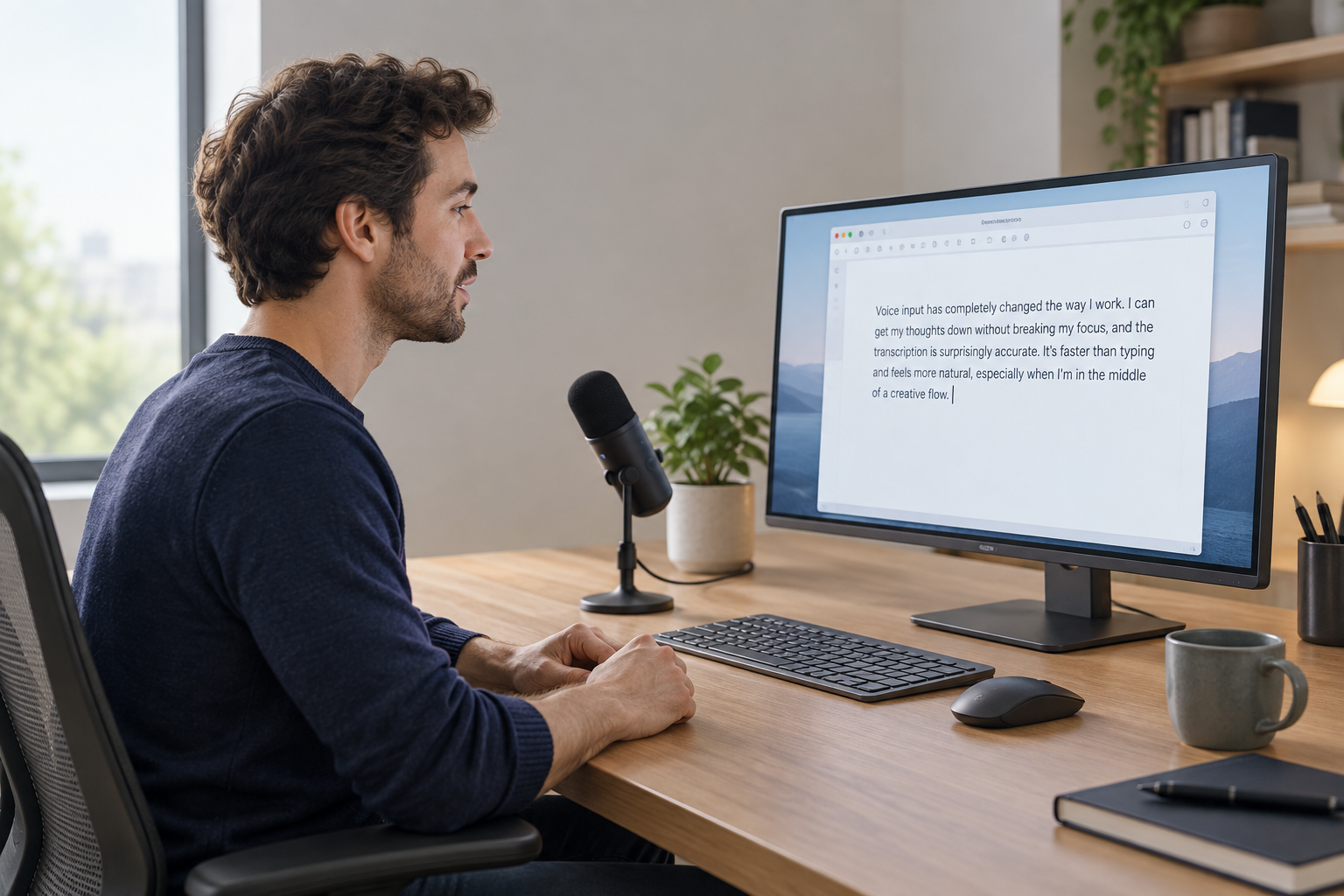
Do you want your voice to write for you, or to operate your computer? If the job is producing text, dictation is the tool, and voice control is the wrong buy for it.
That is the honest answer to the dictation vs voice control for producing text question, and most guides blur it. The two do different jobs. Dictation converts live speech into text in a field. Transcription converts recorded audio afterwards. Voice control drives menus, clicks, and navigation across the whole device. Developer workflows even split the space into three jobs, dictating prose and prompts, building a speech pipeline, or controlling the computer hands-free, a distinction most roundups flatten into two. They are not entries on one accuracy leaderboard.
So the practical rule: writing in one app? Start with that app’s built-in dictation. Want text at the cursor in every app (editor, email, chat, browser)? A dedicated cross-app dictation tool covers that. Voice control earns its place for hands-free operation and accessibility, not for faster writing.
Error rates keep falling as dictation apps get better and AI models improve, so the keyboard is for tweaks rather than drafts.
Whatever you pick, test the microphone, your vocabulary, the target apps, and the correction effort before paying anything.
The rest of this guide sorts the terms, the built-in Mac and Windows options, and a simple decision framework.
Dictation writes. Voice control operates.
These are two different jobs-picking voice control when you only want text means paying a setup and learning tax for features you’ll never use.
Dictation is “intentional, structured speech designed to produce text.” Words land in the active text field-an editor, email, or prompt box-and modern tools accept spoken commands for punctuation, formatting, and navigation.
Voice control is the opposite: operating the computer. It lets users “traverse and control the entire screen with just their voices, giving them full access to every major function of the operating system”-text production is a side capability, not the point.
Dictation tools increasingly bundle light voice commands like “new line”-which is why the two get conflated-though commanding menus, buttons, and apps is far larger scope.
Dictation tools compete on where text lands and how it transcribes: Wispr Flow for cloud dictation across desktop and mobile, Superwhisper for broad device coverage with local voice models, Voicetypr for local-by-default text-at-cursor dictation on Mac and Windows with lifetime pricing-none competes on command coverage. Developer workflows split the space into three jobs-dictating prose and prompts, building a speech pipeline, or controlling the computer hands-free-with the middle job belonging to neither consumer category.
Emails, docs, code comments, or AI prompts? The text is the deliverable-dictation. Voice control earns its keep only when hands-free device operation is the need.
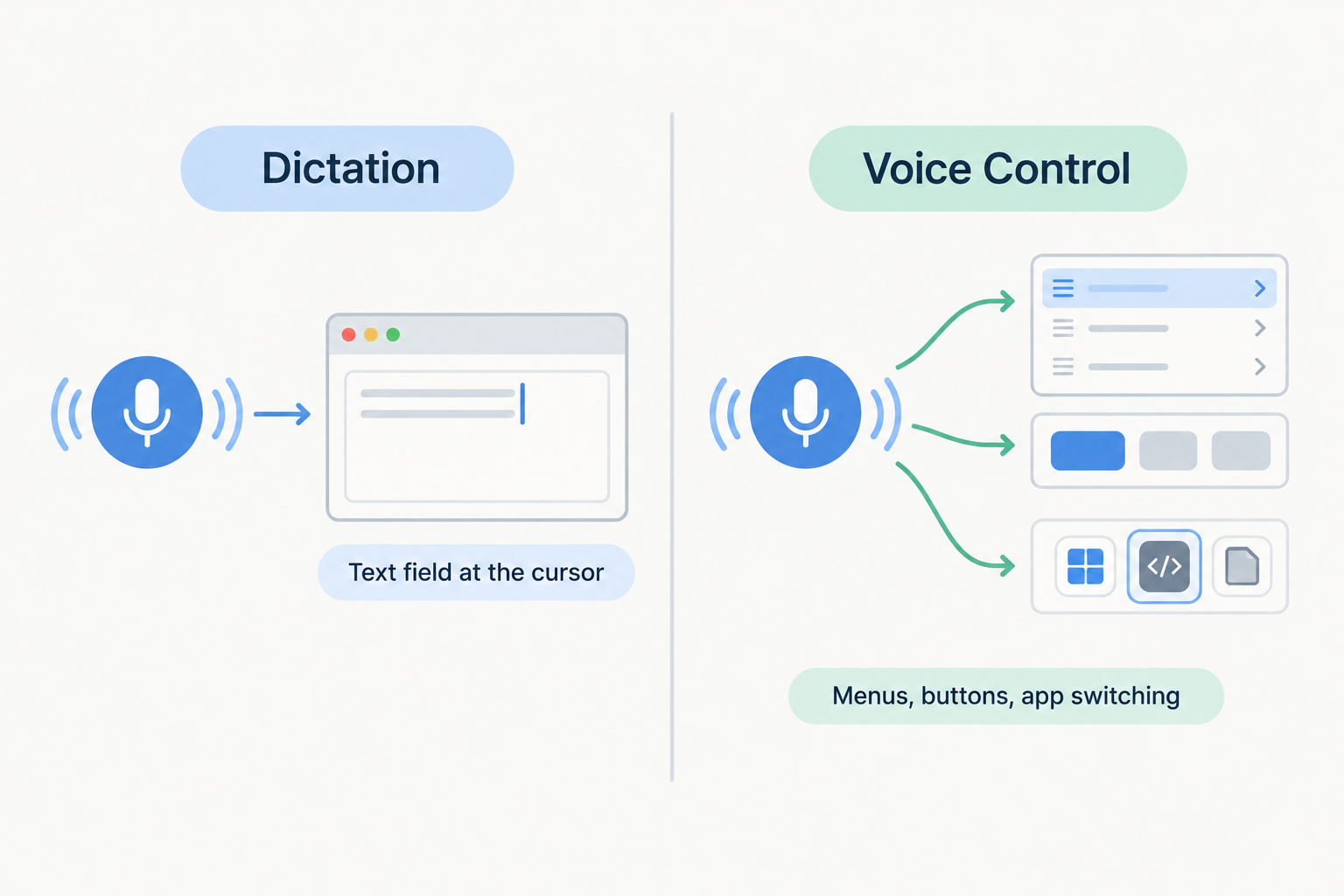
Where should the text land? The question that decides everything
Ask one question before comparing tools: where do the words need to appear? If the answer is a single destination, such as a document, a chat box, or an AI prompt field, you need dictation. If the answer is anywhere on screen, including buttons and menus, you are describing voice control. That single diagnostic settles most purchases.
Apply it as a paste test. A useful Mac dictation tool should paste into the editor, browser, chat box, or AI prompt field you already have open. The same standard holds on Windows. Dedicated dictation runs system-wide: you press a hotkey, speak, and the text lands at the cursor in whatever app is active. Draft an email, prompt an AI chat, fill in a comment box. Same gesture every time.
Voice control reaches interfaces dictation cannot: buttons, menus, switching between apps. That strength serves hands-free computer operation. It matters only if your writing workflow requires GUI navigation you cannot do by hand. Most writers click fine. The voice exists to replace typing, not mousing.
So writers who produce prose, emails, prompts, and comments almost always fall into the first case. Your output is text, and text must land in the field where the work happens. Pick the tool that meets you there.
The built-in matchups: Apple Dictation vs Voice Control, Voice Typing vs Voice Access
Each platform splits the same way: one built-in tool writes text, the other runs the device. Pick by job, not by name.
- Apple Dictation: purpose is free text entry into Apple text fields. When to use: you need words in a Mac document or field and want the free built-in baseline. Setup cost: minimal, because it ships with macOS.
- Voice Control (Mac): purpose is running the whole device, with dictation included. Apple describes it as enhanced command and dictation where “Users can traverse and control the entire screen with just their voices, giving them full access to every major function of the operating system.” When to use: hands-free operation beats writing speed. Setup cost: heavier; it’s a separate, more involved mode.
- Windows Voice Typing (Win+H): purpose is free connected dictation. When to use: you only need free dictation and can stay online. Setup cost: near none. Press Win+H and dictate.
- Windows 11 Voice Access: purpose is offline hands-free control after setup. When to use: navigation and commands matter more than text entry. Setup cost: an explicit setup step before it’s usable.
One caveat for Windows readers on older machines: not everyone has Windows 11. Keep the older Windows 10 path visible instead of assuming one OS version.
For pure text production, the dictation side of each pair is the lighter tool.
When voice control earns its place (and when it’s pure overhead)
Voice control earns its place in three situations: accessibility, hands-free device operation, and scripted automation. If none of those describe your work, its command overhead buys you nothing.
Accessibility is the strongest case. A user who cannot, or prefers not to, use a keyboard needs whole-device control, not just text insertion. Apple’s Voice Control lets users traverse and control the entire screen with just their voices, giving them full access to every major function of the operating system. A dictation app that only writes text into a field cannot do that job.
Hands-free computer control is a real job too, and a different one from writing. Developer voice workflows split into “dictating prose and prompts, building a speech pipeline, or controlling the computer hands-free.” The control side covers hands-free navigation, voice commands, eye tracking, and Python scripting. Those needs justify a control-first tool; producing text does not.
If you can type and mainly want words on the screen faster, skip voice control. For text entry, use a focused local model rather than full OS navigation. Navigation commands sit between your thought and the field, and they only pay off when operating the device is the task.
One caveat before you pick a side: the sources support this job distinction, not benchmark claims about which mode is more accurate. Choose by the job in front of you.
Dictation, voice typing, transcription: clearing up the adjacent terms
Dictation is real-time; transcription is not. When you dictate, your own speech enters an active text field as you speak, so the words land where you type. Transcription works on pre-recorded audio afterwards, and the output usually needs post-processing before it is usable.
That distinction maps to two different jobs. A dictation tool enters your own speech into an active text field. A lecture tool records, transcribes, stores, and organizes a session. Otter is the example worth naming here: use it when the job is recording a lecture or meeting with permission, not speaking directly into an essay.
“Voice typing” causes most of the confusion, but it is just the casual name for the same speech-to-text job. Google Docs Voice Typing is the strongest free browser starting point for Docs, Apple Dictation is the built-in Mac baseline, and Win+H is the connected Windows baseline. All three are free drafting tools, not a separate category.
So the practical takeaway: if you are now weighing dictation against transcription tools, you have drifted from the original question. Producing text live means dictation. Capturing a lecture or meeting for later means a recorder like Otter. Pick based on when the text needs to exist, not on which term sounds closest.
A 3-step decision framework for text producers
Three steps settle it: name the job, pick the surface, check the privacy model. Run them in order, and the dictation-vs-voice-control question answers itself.
Step 1: Name the job. Writing prose, prompts, email, docs, and comments all point to dictation. Navigating the computer hands-free points to voice control. Developer workflows show the split clearly: dictating prose and prompts, building a speech pipeline, or controlling the computer hands-free are separate jobs, and the tool you pick should match the one you actually have.
The Zapier team puts it plainly: “With error rates consistently going down, thanks to both existing dictation apps getting better and the power of the latest AI models, this is the best time to pick your favorite speech-to-text software and leave the keyboard just for the tweaks.”
Step 2: Pick the surface. If you dictate in one app only, start with the built-in: Apple Dictation is the built-in Mac baseline, Google Docs Voice Typing is the strongest free browser starting point for Docs, and Win+H is the connected Windows baseline. Need the same voice input in every app on Mac and Windows? That is the case for a dedicated local-by-default dictation app with text-at-cursor insertion and lifetime pricing.
Step 3: Check the privacy model. For sensitive drafts (client work, unreleased plans, personal notes), prefer transcription on your machine by default rather than upload. Check whether voice is transcribed on-device, sent to a provider, or mixed with optional cloud formatting. And verify the setting during a trial or free tier before you pay.
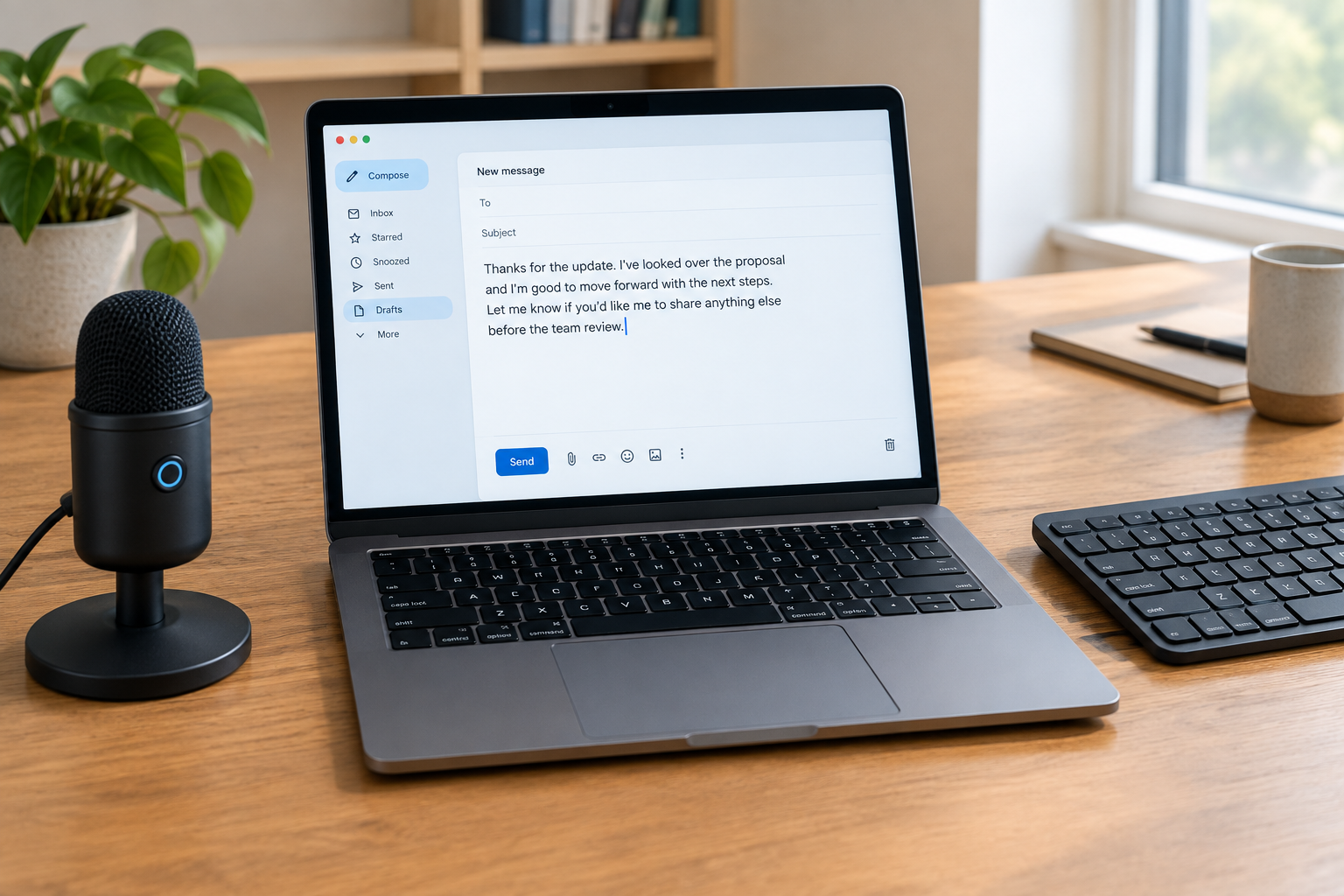
Test it in your real apps before you commit
Every comparison guide lands on the same closing instruction: test the tool in your actual workflow before paying. The Windows guide says to test your microphone, vocabulary, target apps, and correction effort first. The developer guide narrows the point to code work: test any text-at-cursor tool in your actual editor and terminal before buying. The student guide repeats it for coursework: try the real learning portal, editor, microphone, and correction workload.
Correction effort is the hidden cost. A tool that transcribes a paragraph and leaves you a quick fix beats one with a longer feature list that leaves you rewriting the whole thing. Whichever tool lands finished text at your cursor with the fewest manual edits wins, whatever the marketing promises.
Check setup friction as well. Modern dictation should not require voice-profile training before it becomes useful in normal apps. A tool that demands voice-profile training spends your setup time up front.
Last, verify what marketing pages cannot show you. During a trial or free tier, dictate into the exact prompt fields and check the privacy settings you actually use. Then pay only for what survived the test.
If the job is producing text, use dictation. Voice control earns its place only when hands-free control of the computer is the actual need. The two overlap in demos and marketing, but they solve different jobs, and picking the wrong one costs you setup time and friction you never get back. Voice control can wait.
Timing is on your side. Error rates in dictation software keep going down, which makes now a reasonable moment to try the tool you already own instead of researching for another month. The trend favors beginners most.
So run the test this week, inside your real workflow. Turn on your platform’s built-in dictation option first, Apple Dictation on a Mac, Windows’ free dictation software on a PC, and draft one real email or document by voice in the app you already use, not in a test sandbox. If the words land where you need them and correction feels light, you have your answer. Stick with it. If you want the same voice input in every app on your machine, that is the moment to evaluate a dedicated local dictation tool. Leave the keyboard for the tweaks.
Further reading
- Diktieren für Entwickler: Sprache-zu-Text sinnvoll nutzen
- Diktieren für Forschende: Sprache-zu-Text sinnvoll nutzen
- Diktieren für Immobilienmakler: Sprache-zu-Text sinnvoll nutzen
- Diktieren für Juristen: Sprache-zu-Text sinnvoll nutzen
- Diktieren für Marketer: Sprache-zu-Text sinnvoll nutzen
- Diktieren für Produktmanager: Sprache-zu-Text sinnvoll nutzen
Leave a Reply