Will the tool you pick put a chapter draft straight into your writing app, or leave you with a recording to process afterward? That question matters more than any accuracy ranking, because the best dictation app for authors vs general dictation apps comes down to workflow, not a leaderboard.
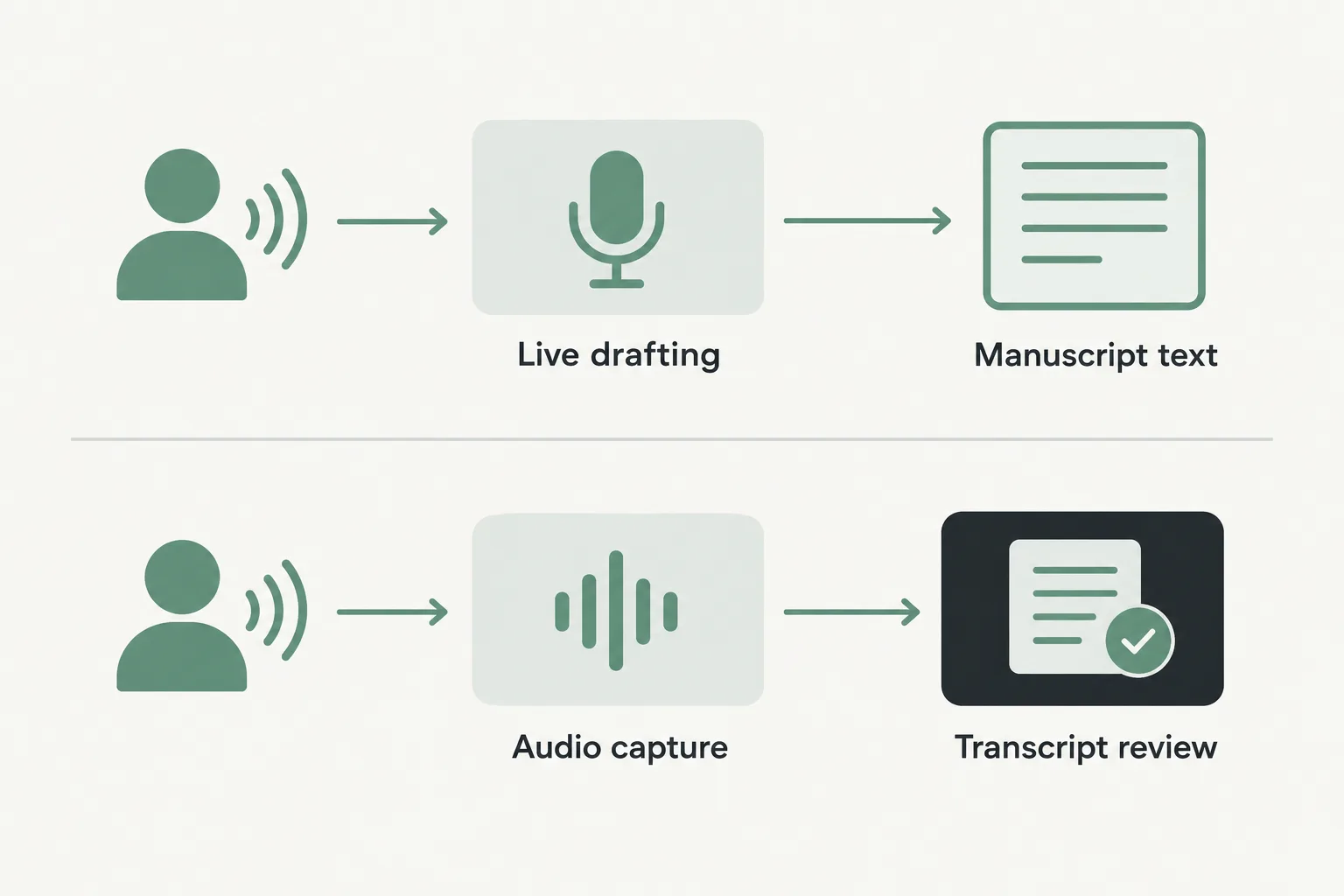
Live dictation and transcription solve different jobs. A meeting recorder can handle several speakers and still be awkward for drafting prose, while a system-wide dictation tool may struggle with a recorded interview. Even the named categories split this way: Otter records lectures and meetings, Google Docs and the operating-system tools cover free drafting, and a dedicated app can add cross-app or local processing. Start by deciding whether you are composing directly or capturing audio for later review.
Then test in the real environment. A dictation app should put spoken text where you are writing, so check insertion into your actual editor and whether a transcript transfer is needed. Run a chapter-style trial that checks continuity, pauses, corrections, paragraphing, and names.
Choose the tool by whether you are composing prose or capturing audio
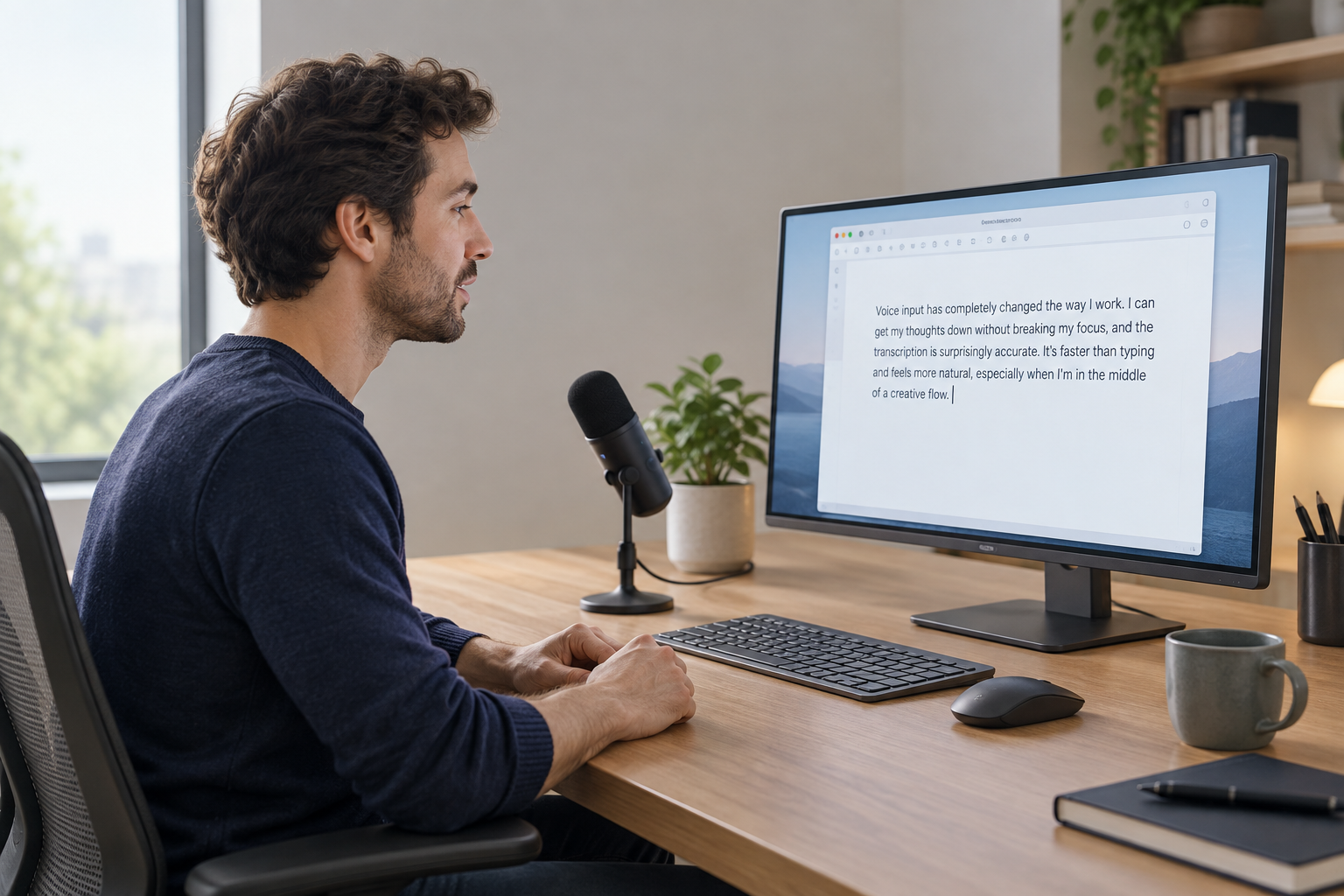
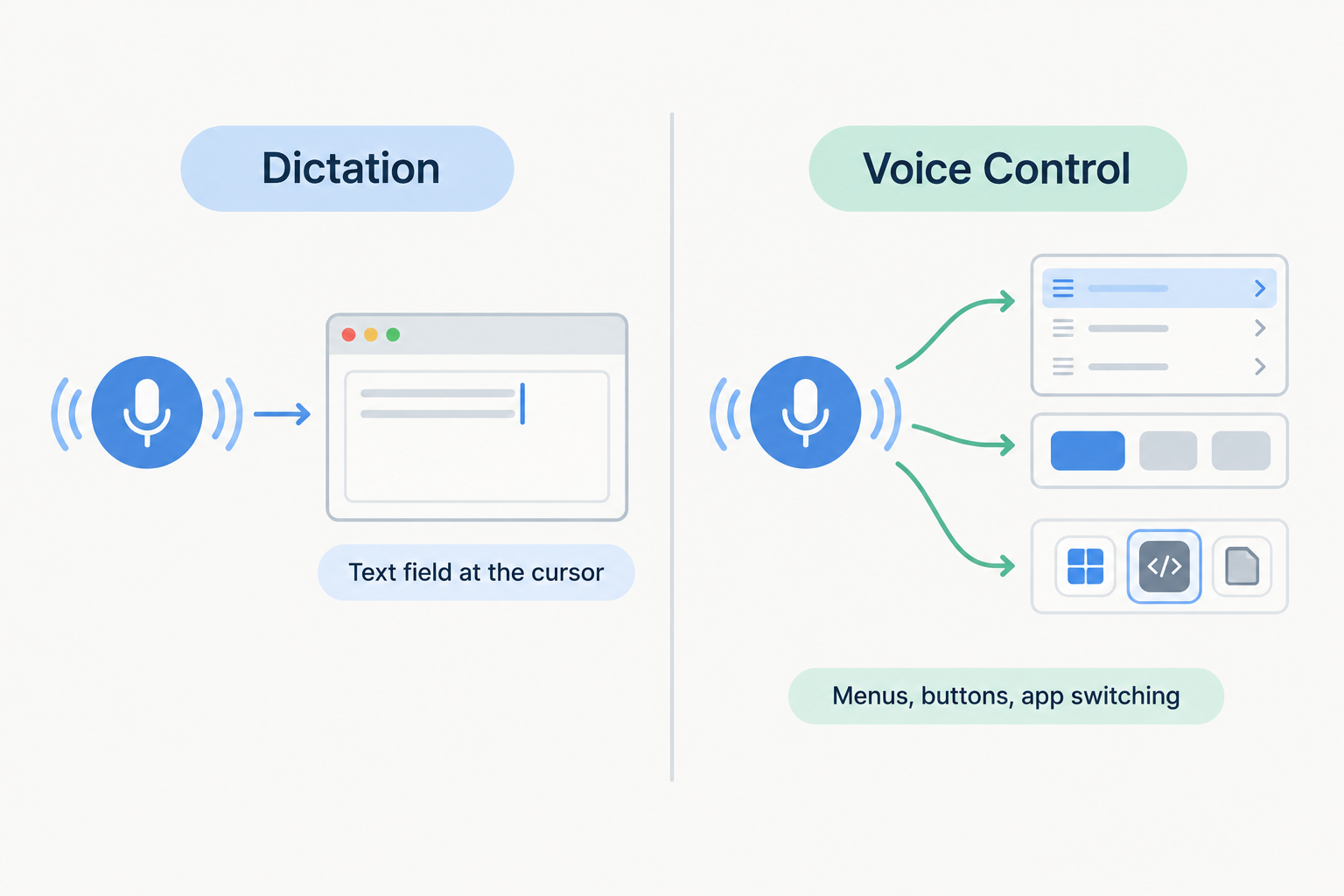
The distinction is practical, not academic. Live dictation puts the speaker’s words into an active text field as you speak; transcription captures existing audio and produces text for later review. A real dictation app puts spoken text where you are writing, whether that is your editor, browser, or draft document.
That difference decides the product. A meeting recorder can recognize several speakers well but still be awkward for writing an email, while a system-wide dictation tool may be excellent for short notes and poor at turning a recorded interview into a usable transcript. The lecture and meeting category serves a different job: recording a session, identifying speakers, and organizing searchable transcripts. A dictation tool enters your own speech into an active text field. One is built for capture and retrieval; the other, for direct writing.
Set a decision rule before comparing anything: choose around your real work. Drafting chapters into a document calls for direct text entry. Recording ideas or interviews for later calls for a recorder. Doing both means picking one of each, because no single tool wins everywhere. The right fit depends on where the text needs to land and how much review your workflow requires.
Test a tool on a real chapter before trusting it with long-form work
Draft one full chapter section with each candidate on your shortlist, not a greeting or a single sentence. A longer section lets you check pacing, pauses, restarts, and mid-sentence corrections that a quick note might not reveal. A meeting recorder can recognize several speakers well but still be awkward for writing an email, and the same logic applies here: match the tool to the job.
During the trial, check specific things. Does the app place paragraph breaks where you pause, or run sentences together? How does it handle punctuation, character and place names, and invented vocabulary from your story world? How do transitions between spoken sections read? Frame these as test criteria, not guaranteed features; you are evaluating, not assuming.
Ask practical questions before you commit time. Can a session be resumed if interrupted? Can the text be saved in your intended chapter structure? Do not assume any behavior here; confirm it for the specific product and version you are testing.
Finally, count the correction and reorganization each tool demands. The trial ends when you have text you can revise in your manuscript, not a transcript that merely looks complete.
Test text insertion in the writing app you actually use
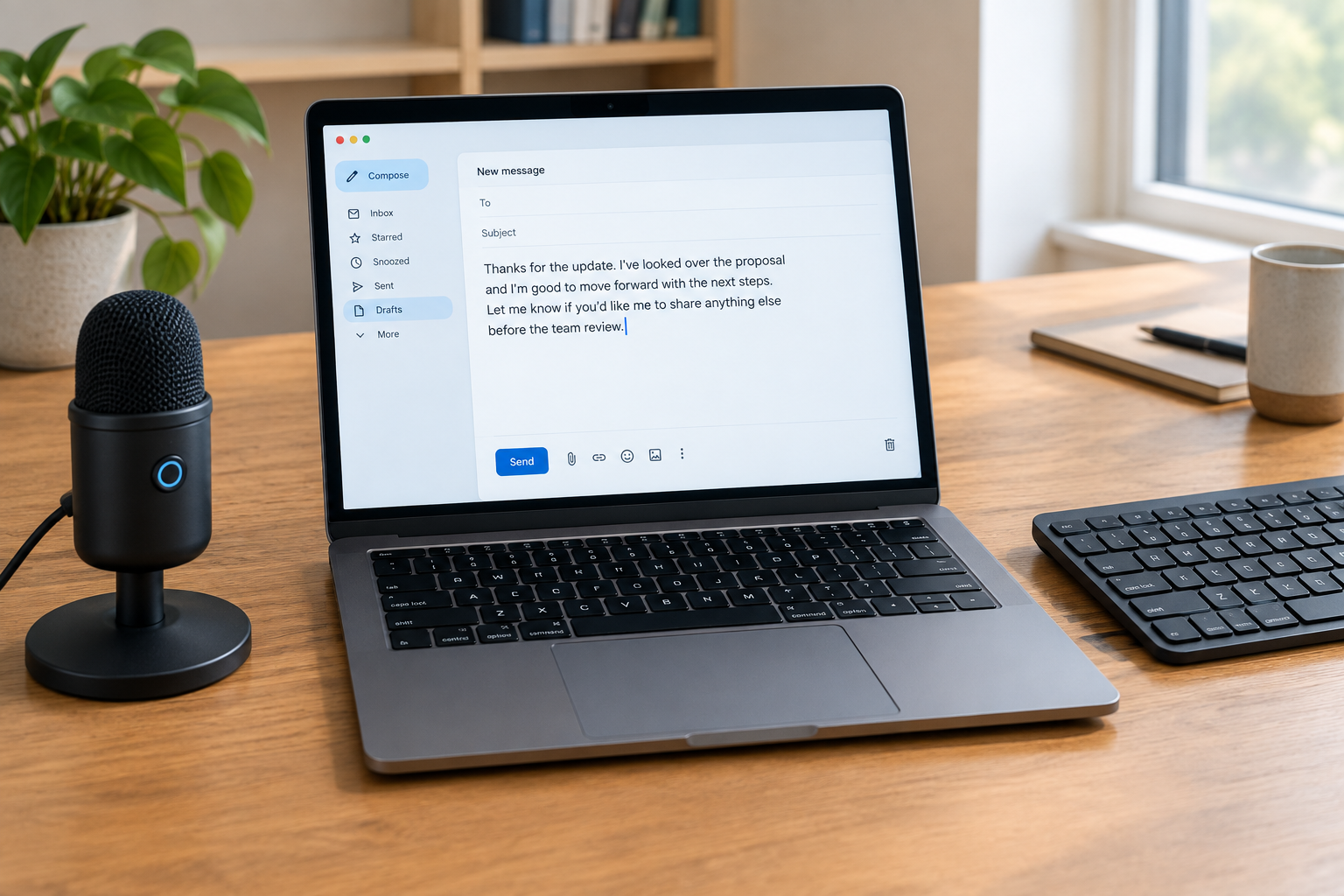
The decisive test is simple: does the tool put text into Scrivener, Word, or Google Docs while your cursor sits in the manuscript? A dictation app should put spoken text where you are writing, so insertion behavior is a practical requirement, not an assumption. Open your real editor and watch where the words land.
Two workflows behave differently here. Direct entry drops text into the active writing field as you speak. A record-first workflow captures audio and returns a transcript you must review and move afterward: extra steps a chapter draft makes expensive. That mismatch is predictable: “A meeting recorder can recognize several speakers well but still be awkward for writing an email, while a system-wide dictation tool may be excellent for short notes and poor at turning a recorded interview into a usable transcript.”
Built-in tools are starting points, not proven manuscript solutions. Google Docs Voice Typing and the operating-system tools cover free drafting, within limits: Apple Dictation is a free Mac baseline, but check where the built-in option stops. For cross-app tools, verify insertion in the exact editor and text fields you use. A tool that fills a browser box may behave differently in Scrivener.
Judge correction effort, not an unsupported accuracy ranking
Ignore any vendor’s accuracy claim and rank the tools by your own correction burden. A tool that scores well on someone else’s benchmark can still hand you a draft that needs heavy repairs, and no public leaderboard knows your microphone, your accent, or your manuscript.
That matters because results are not stable across setups. Accuracy varies by microphone, accent, language, model, and environment, so the same tool can behave differently in your room with your mic than in a reviewer’s test.
So run a fair test. Dictate the same short passage into each shortlisted tool, then dictate a longer chapter section, because long sessions surface problems a single sentence never will. Put the outputs side by side.
Track four kinds of cleanup: missed words, punctuation and paragraph repairs, proper-name corrections, and text that must be moved or rewritten rather than nudged. The proper names include your characters, places, and any invented vocabulary from your manuscript.
Choose the tool whose cleanup load you can live with, matched to how you actually draft. If a tool’s style moves you closer to finished prose with less fixing, that beats any leaderboard or marketing number.
Match manuscript privacy and cleanup needs to the processing model
Before dictating unpublished work, find out where your voice actually goes. Some tools transcribe on-device, some stream audio to a provider’s servers, and some mix local transcription with optional cloud formatting. Those are three different data paths. The Mac dictation guide frames the privacy question exactly this way: check whether voice is transcribed on-device, sent to a provider, or mixed with optional cloud formatting.
Treat cleanup as a separate decision. AI rewriting is distinct from transcription, and enabling it can change how your words are processed. The offline dictation guidance says to define offline precisely, separating local transcription from setup, model downloads, license checks, updates, and optional AI formatting. Check the documentation for the specific mode you intend to dictate in before you read a chapter aloud. Do not assume every configuration handles audio the same way.
VoiceTypr fits authors who want local-first dictation on Mac and Windows: the source describes on-device transcription by default, so audio never leaves the device, with text insertion into every app you write in.
One habit ties it together. Review any AI-polished output against your intended voice before treating it as manuscript-ready prose.
Build a shortlist around your platform and the job you need done
Start free, then narrow by the job. On a Mac, Apple Dictation is a free built-in baseline; Google Docs Voice Typing covers free browser drafting, and operating-system tools also cover free drafting. The catch is reach: the built-in option has to land in the field where you actually write.
If the job is capturing other people, pick a different category. The research recommends Otter for meeting recording and collaborative transcripts, and a meeting recorder can recognize several speakers well yet still be awkward for writing an email. Don’t expect it to behave like live manuscript dictation.
Windows authors who need deeper voice commands and professional documentation workflows have Dragon as one option the source identifies.
The same quick verdict also names Superwhisper for broad device support with local voice: a relevant entry if you write across several machines and want processing that stays local.
For drafting into any text field on Mac and Windows with local transcription by default, include VoiceTypr in the test shortlist. Then judge it against your real editor and correction workload, not a feature list.
Choose the workflow that puts text where you write, not the tool with the boldest accuracy claim. A dictation app should put spoken text where you are writing, so the deciding test is your manuscript, not a marketing table.
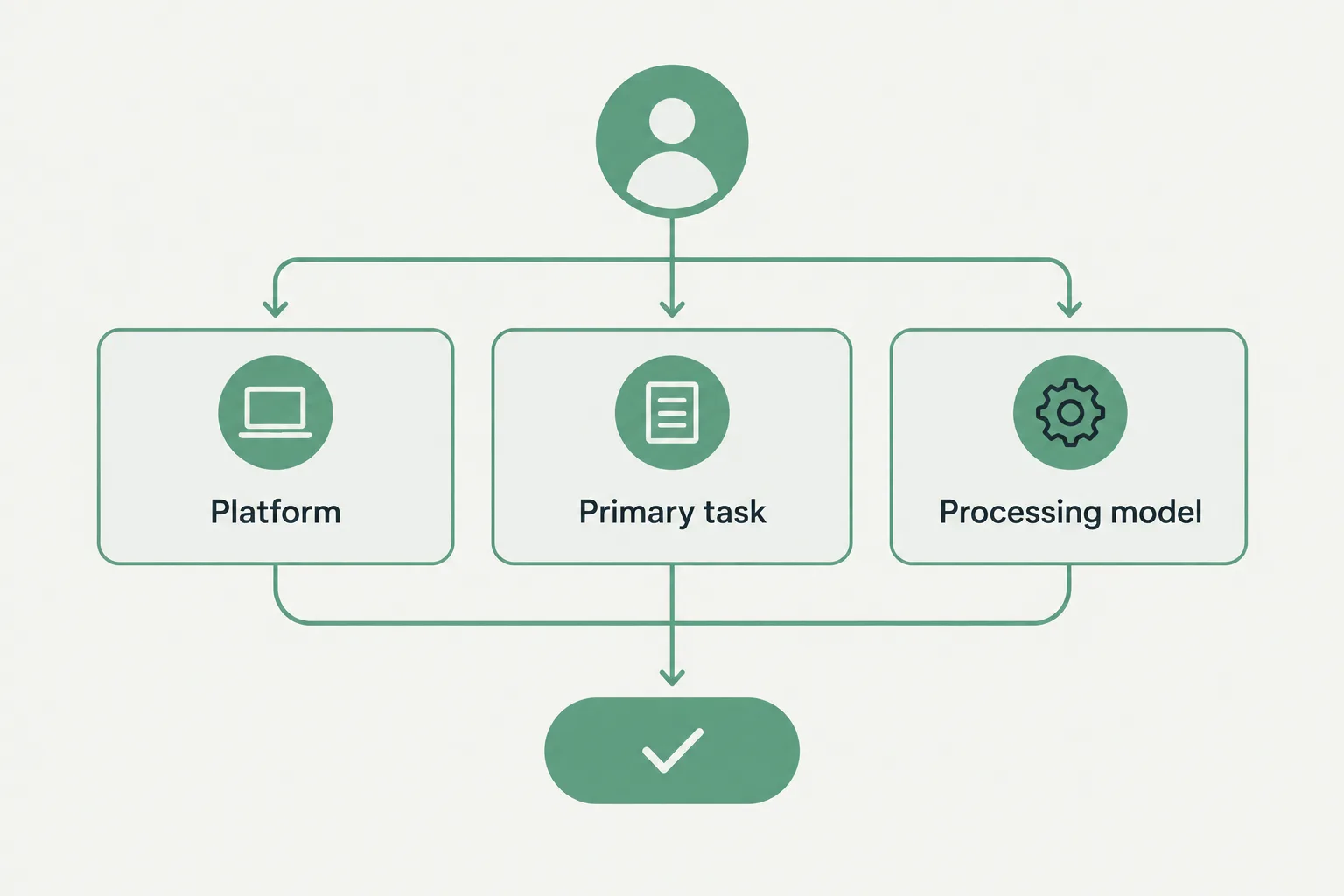
Run the same representative passage and the same chapter section through every candidate on your shortlist, inside the writing app you actually use. Then judge three things: whether the text lands in your editor, whether the correction burden is manageable in a longer draft, and whether the processing model suits your material. If you want offline dictation, unlimited use, and a predictable flat fee, weigh those criteria alongside where your drafts are processed.
And if your primary task is capturing other speakers, such as an interview, pick a recording tool instead. A meeting recorder can recognize several speakers well but still be awkward for writing an email. Dictate the draft; record the interview.