Category: Uncategorized

  • How to Fact-Check an AI-Written Article Before Publishing It on Your Site

    How to Fact-Check an AI-Written Article Before Publishing It on Your Site

    How to Fact-Check an AI-Written Article Before Publishing It on Your Site

    A printed page with gray placeholder lines and a bright green highlighter stripe lies on a wooden desk beside tortoiseshell glasses, a magnifying glass with a brass rim, a green highlighter with cap off, a green houseplant, and stacked blank sheets.

    What you need before you start

    Before you publish, treat the AI draft as material to review, not as proof of its own claims. Search Engine Journal reports that Google’s guidance calls manual fact-checking and review of all AI-generated content critical for accuracy and trustworthiness before publication.

    • An editable draft: Keep a copy you can annotate, including its headline and any captions you intend to publish.
    • Access to primary sources: Be ready to open original research, official statements and direct records rather than relying on summaries or the draft’s citations alone.
    • Your current business details: Have approved product descriptions, prices and policies available for comparison wherever the article describes your offer.
    • A named approver: Choose someone who can resolve questions about the subject and decide whether the revised article is ready to publish.

    Set aside a place to record each claim, its supporting evidence and your decision to keep, change or remove it. Agree that unresolved claims stay out of the published version, even when the wording sounds confident and reads smoothly.

    How to fact-check an AI-written article, step by step

    1. Mark every checkable claim. Read each sentence and highlight factual assertions, including comparisons, promises, dates, figures, names and quotations. Include claims implied by headings.
    2. Match claims to evidence. Open each cited source and locate the passage supporting the assertion. Record whether it supports the exact wording and scope rather than just the topic.
    3. Check your own offer. Compare product descriptions, pricing and policy statements with your current approved records. Revise anything that overstates availability, omits conditions or describes a planned capability as available.
    4. Resolve unsupported wording. Correct errors, narrow claims to what the evidence supports or remove them. Recheck surrounding sentences so an edit does not leave a misleading conclusion.
    5. Review beyond the body. Apply the same checks to the title, meta description, structured data and image alt text. Keep their claims consistent with the corrected article.
    6. Approve, then publish. Have the reviewer examine factual changes and any legal, regulatory or brand-fit concerns. Publish only the approved version, then inspect the live page.
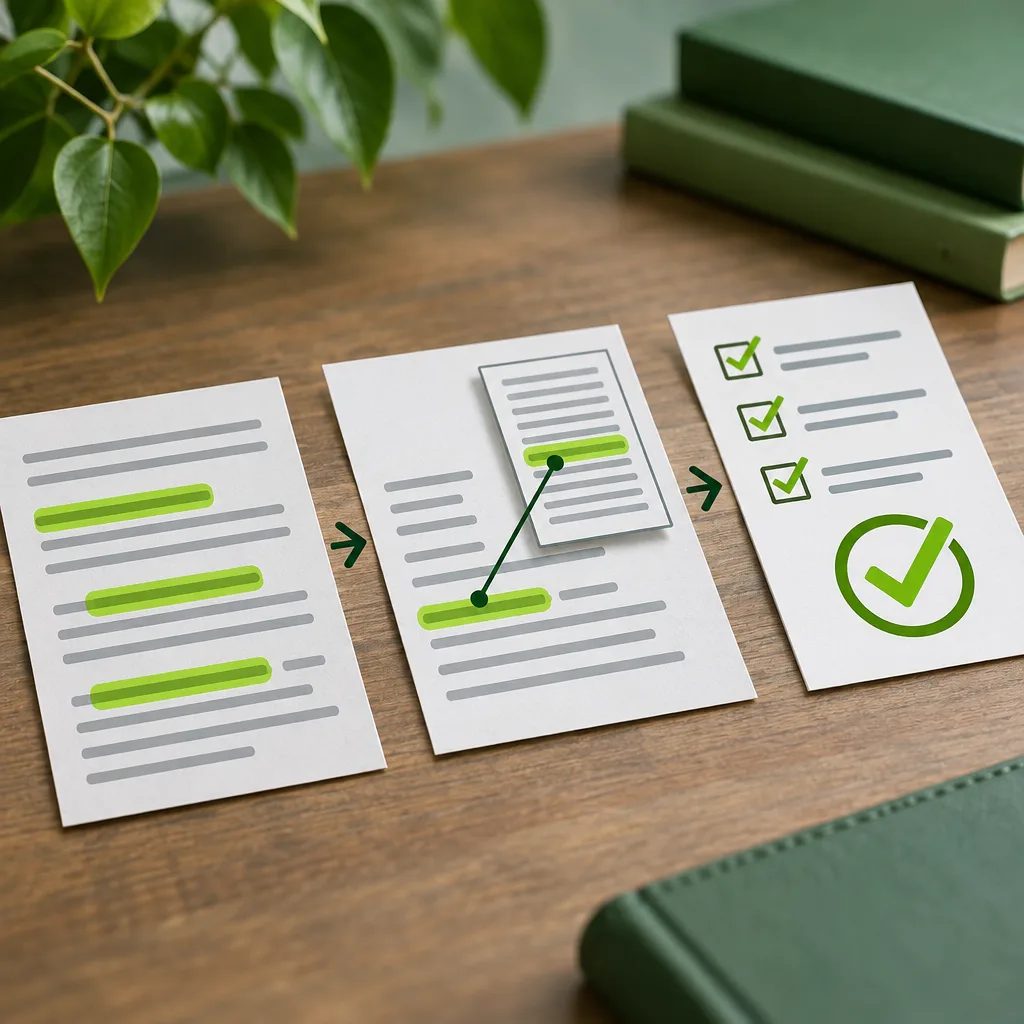
    Three sheets of paper on a wooden desk shown left to right with green arrows between them. The left sheet has grey text lines with three green highlighted lines.

    How to trace each claim, number, name and quote to a primary source

    1. Follow the citation trail. Start with the cited article, then follow its references to the original study, dataset, announcement or recording. Save the precise passage or timestamp, not just the homepage.
    2. Check numbers at their origin. Compare the figure with its table or underlying results. Keep the unit, denominator, population, time period and conditions attached. Distinguish percentage changes from percentage-point changes.
    3. Verify names and dates. Use the relevant person’s or organization’s own published record to check spelling, role and event date. Separate publication dates from the dates events occurred.
    4. Find quotes verbatim. Locate the original transcript, recording or written statement. Check the speaker, exact words and surrounding context. If you paraphrase, remove quotation marks and preserve the meaning.
    5. Match the claim’s strength to the evidence. Treat an organization’s statement about itself as its claim, not independent proof. Where the original supports only a narrower point, rewrite accordingly. Remove wording that you cannot tie directly to a specific supporting passage.

    Stacked printed pages with green header bars, text blocks, a mountain landscape image, a bar chart, and a grid-like chart seen through a brass magnifying glass on a dark green desk, with a book and pen at the edges.

    What Google says about reviewing AI-generated content

    In its October 1, 2026, report, ppc.land describes Google’s guidance as calling for manual review of all AI-generated content for accuracy and trustworthiness before publication. The report explicitly includes title elements, meta descriptions, structured data and image alternate text within that review.

    Treat those elements as part of the article’s factual claims, not merely packaging. Use this final consistency pass:

    • Title: Ask whether the headline promises more certainty or a broader result than the evidence supports.
    • Meta description: Check whether its short summary preserves qualifications that matter to the reader’s decision.
    • Structured data: Compare factual statements with the approved article; remove assertions that the article does not substantiate.
    • Image alt text: Describe what the image shows without adding unsupported identities, locations or conclusions.

    Keep this pass separate from proofreading: readable wording is not your approval criterion. Approve each element only when its factual meaning matches the checked article, and carry any necessary correction through every place where the same claim appears before you publish.

    Check claims about your own product, pricing and policies

    For our content, use available safeguards and review as appropriate for your automation mode, covering factual accuracy, legal or regulatory requirements, and brand fit.

    1. Product claims: Compare each promise with your approved product information. Check who gets the capability, what it does, and whether it is available now or only planned.
    2. Pricing: Match the amount, currency, billing period and applicable conditions to your approved prices. Keep trial terms, eligibility and any exclusions attached to the offer they describe.
    3. Policies: Compare refund, cancellation and other policy statements with the wording your business has approved. Resolve conflicting versions with the person responsible before keeping a claim.
    4. Approval: Route product and commercial changes to their owners, and legal or regulatory claims to a qualified reviewer. Ask your brand reviewer to assess promises and tone. Record who approved the exact final wording and when; if later edits change its meaning, return that wording for approval rather than carrying the earlier sign-off forward into the revised article.

    How to tell your fact-check worked

    Use a handoff test rather than another read for fluency: could a colleague explain why each factual statement survived the review without asking you? Treat the article as ready only when the review record makes those decisions clear.

    • Traceable evidence: For every retained claim, the record identifies its supporting passage and shows how it supports the final wording, including important conditions.
    • No unresolved claims: Each flagged assertion has a recorded outcome: corrected, narrowed or removed. An unanswered comment should mean the draft is not ready.
    • Consistent presentation: Your completed review covers the headline, metadata and image text as well as the body, with no abandoned claims left outside the article.
    • Version-specific approval: The approver has signed off on the exact version queued for publication, not an earlier draft.

    As a final spot test, choose a consequential claim and follow its evidence trail from the finished wording. If that handoff fails, reopen the review before publishing.

    Troubleshooting common problems

    Use these recovery actions when a check stalls, rather than polishing wording around an unresolved factual problem.

    • No source turns up: Stop searching once you are only finding copies of the same assertion. Remove the claim or replace it with a narrower statement you can substantiate. Do not substitute the AI’s explanation for evidence.
    • Sources conflict: Compare what each source actually measures, including dates, populations, definitions and scope. If they answer different questions, separate the claims. If the disagreement remains material, describe it with attribution rather than choosing the more convenient version.
    • Quote cannot be found: Remove the quotation marks only if you have evidence for a faithful paraphrase. Otherwise, delete the passage. Do not reconstruct a speaker’s words from memory or an AI rewrite.
    • Draft keeps failing checks: Set it aside. Build a fresh outline from supported points, then write again. Reuse only passages that pass review, not sentences whose main appeal is how polished they sound. Treat repeated failures as a reason to restart verification.

  • Offline Dragon Alternatives for Mac You Can Buy Once

    Offline Dragon Alternatives for Mac You Can Buy Once

    Offline Dragon Alternatives for Mac You Can Buy Once

    A bright, minimal home workspace with a closed gray laptop on the left, an open notebook with a dark green ribbon bookmark and a black pen in the center, a ceramic mug on a cork coaster at the right, and a potted plant and bookshelf in the

    The short answer: offline Mac dictation you can buy once

    Yes—there are pay-once options for local Mac dictation. For replacing Dragon’s speech-to-text role, consider the following shortlist. Choose around where you want the text to land, your Mac’s hardware, and whether you want a lifetime license rather than a recurring plan.

    Press our hotkey, speak, and text lands at the cursor in your current desktop app. We require macOS Sonoma 14+ and at least 4 GB RAM; Intel Macs are supported, with Apple Silicon recommended. Consider us for cross-app voice drafting.

    VoiceInk is another local/offline Mac option without a subscription. The New York Times’ Wirecutter reports a $25 one-time purchase for offline dictation on iPhones and newer M-series Macs. It belongs on your shortlist if you use Apple Silicon and prioritize a low upfront cost.

    Superwhisper runs entirely on your Mac when using its local Whisper models, without transmitting audio. Sprecho.ai reported in October 2026 that it offered a US$249.99 lifetime option alongside monthly and annual subscriptions. For this requirement, the relevant combination is the lifetime option with local models.

    SpeakMac also merits consideration: aidictation.com described it in March 2026 as a practical Dragon alternative for Mac users seeking local dictation and a simple one-time purchase model.

    Whisper Notes is available on Mac and iPhone, with offline transcription running locally on Apple Silicon. Speakwiseapp.com reports a $6.99 one-time purchase. Consider it if local transcription is your main requirement.

    Leave cloud-dependent options off a strictly offline shortlist: Wispr Flow needs internet access to recognize speech; Microsoft Word Dictate has no offline dictation model on any platform; and Mobius Scribe is primarily cloud-assisted, not fully offline.

    Is Dragon still an option on Mac?

    Dragon Professional v16 is a Windows product, optimized for Windows 11 and backward-compatible with Windows 10. That makes it a different purchasing proposition from a native Mac dictation app. If your requirement is to speak directly into your everyday Mac workflow, treat that platform distinction as the starting point—not as a minor detail to resolve after choosing a license.

    How it is sold and priced: Dragon Professional has a vendor-contact purchasing route, with no listed price. For a pay-once shortlist, do not assume either a particular upfront cost or a subscription model from that sales route alone. A contact-based offer and an explicitly priced lifetime license are different kinds of buying information.

    For organizations, Dragon Professional also offers volume licensing with the Nuance Management Center. That combination enables deployment, management, and sharing of custom words, commands, and auto-texts across users. Those are relevant capabilities if you are choosing software for a team rather than simply replacing your own typing. They should not, however, be treated as evidence of Mac compatibility or of an individual license’s price.

    If you are coming from Dragon, separate what you want to keep from the product name. Is your essential task turning speech into prose, or does your workflow depend on shared vocabulary, commands, and reusable text? Use that distinction to frame your comparison: a tool suited to drafting paragraphs may not be the right replacement for a command-heavy workflow.

    For this article’s narrower requirement, keep three questions separate: does the candidate run on your Mac, can its transcription work offline, and is the license explicitly sold as a one-time purchase? Meeting one condition does not establish the other two.

    What to look for in an offline Dragon replacement

    Use the same practical test for every candidate: can it handle your everyday writing in the way you want to work? Treat offline processing, ownership cost, and correction effort as separate criteria rather than letting one attractive feature decide the purchase.

    Keep the transcription on-device. On-device transcription keeps recordings out of the cloud. For a strictly offline workflow, make local processing a requirement for the transcription you intend to use—not merely a preference. Judge the workflow you will actually run, rather than choosing on the strength of the word “offline” alone.

    Compare total cost, not just the purchase price. One-time licenses trade a larger initial payment for no recurring dictation bill. Their value depends on how long you expect to use the app and which features you need. Compare free built-in options, subscriptions, and desktop licenses against your actual workflow; avoid paying for scope you will not use.

    Test a real writing task. Start with a low-risk draft you can easily compare with your current method. Choose something representative, such as an issue description, review comment, or documentation paragraph. Include correction and review time in the comparison, rather than judging only how quickly spoken words become text.

    Evaluate your own speech and vocabulary. Recognition varies with voice, microphone, language, model, and vocabulary. Include names, numbers, homophones, and specialist terms in your test, then review those carefully. A supported language or a larger model does not guarantee equal accuracy for your speech.

    Test command-dependent work separately. If your tasks require navigation, command grammars, or structured code editing, look for a code-aware voice-control system. Make those requirements explicit in your trial instead of treating successful prose dictation as proof that the same tool will handle structured editing.

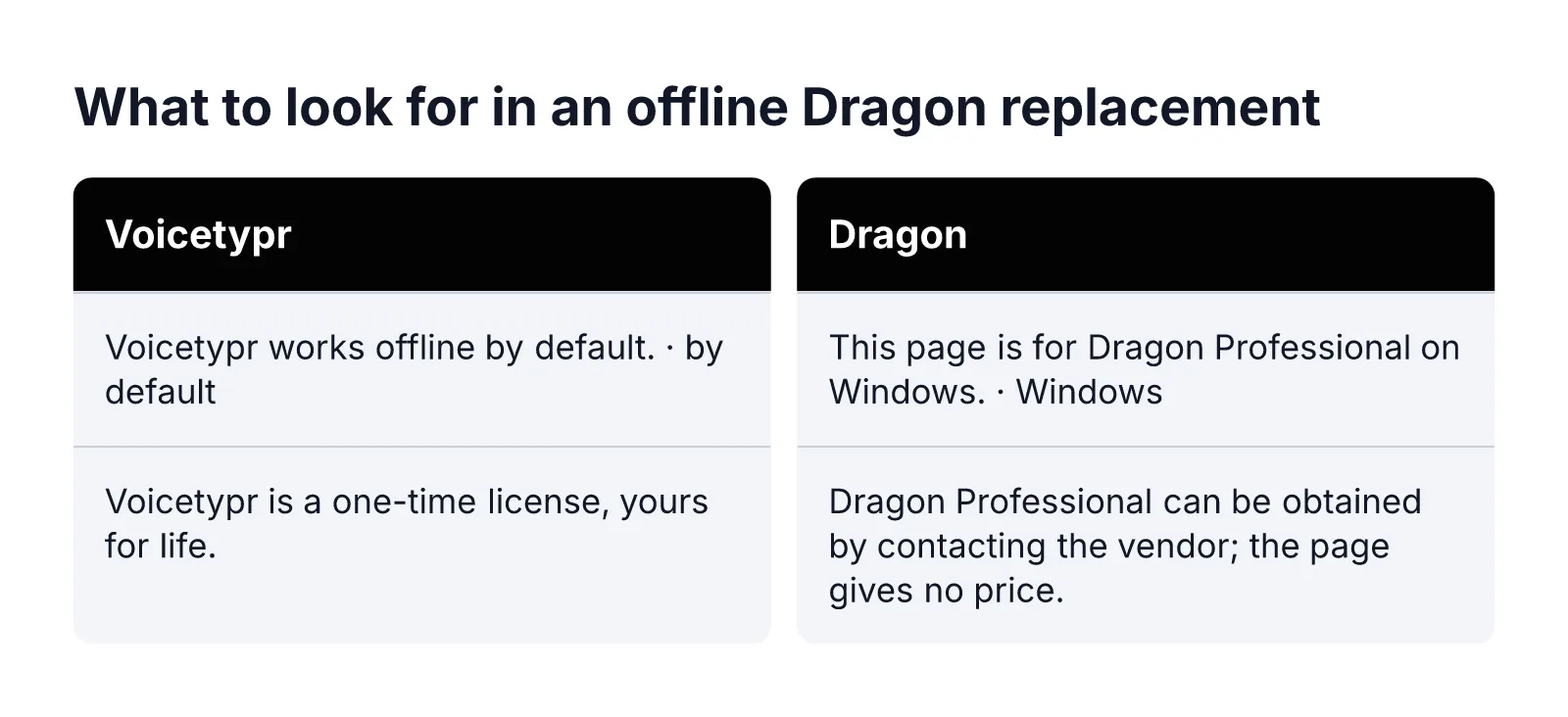
    What to look for in an offline Dragon replacement: Voicetypr: Voicetypr works offline by default. · by default Voicetypr is a one-time license, yours for life.; Dragon: This page is for Dragon Professional on Windows. · Windows Dragon Professional can be obtained by contacting the vendor; the page gives no price.

    Voicetypr · Dragon

    Voicetypr: offline by default, one-time license

    Our default speech-recognition engines are on-device Whisper and Parakeet models. After the required model setup, we can transcribe without an internet connection, processing speech on your machine rather than uploading audio to the cloud. This makes our local workflow a fit if your priority is offline prose dictation rather than a cloud transcription service.

    Offline transcription is distinct from an entirely disconnected lifecycle. Our licensing, model downloads, and updates have separate network dependencies. Optional cloud speech and AI formatting are separate workflows: when you enable them, they may send audio or text respectively. For an offline trial, use downloaded local models and leave those optional workflows out of your test.

    Price and ownership: our one-time licenses start at $39, with a $69 option covering two devices. You can choose one, two, or four activations when buying. The license is yours for life, with no recurring fees, and purchases include access to software updates we release for the product. Choose the activation count around the computers you intend to use, rather than treating the starting price as the two-device price.

    Our free three-day trial needs no card and includes full access to all features. Individual purchases carry a seven-day money-back guarantee from the purchase date. Use the trial to complete model setup and try a disconnected writing session before deciding whether to buy.

    Best fit: we recommend our app for prose such as prompts, issue notes, review comments, and documentation. We do not provide code-aware navigation, command grammars, refactoring, or verified IDE integrations, and we do not reproduce Google Docs voice-editing commands. If those are central to your Dragon workflow, assess them separately from the quality of a dictated paragraph.

    MacWhisper: better for recordings than inline dictation

    MacWhisper is worth considering when your starting point is recorded audio rather than a text cursor. Sprecho.ai reported in October 2026 that it transcribes audio files locally using Whisper. That makes it a candidate for the offline-transcription side of this shortlist, especially if you want to turn existing recordings into text rather than mainly dictate while writing.

    One-time pricing: Sprecho.ai reported a €59 one-time price in October 2026; lumevoice.com separately reported €65 one-time. Both describe a pay-once purchase, but the reported amounts differ. Treat those figures as attributed price reports, not a single current checkout price. For your shortlist, the useful distinction is the reported one-time purchase model rather than a recurring subscription.

    Does it dictate into any app? In Sprecho.ai’s October 2026 account, system-wide dictation is a secondary, basic feature in the Gumroad version and is absent from the App Store version. Do not treat those editions as interchangeable for a Dragon-style inline workflow. If cross-app dictation is your main reason to buy, that edition distinction matters more than its ability to transcribe an audio file locally.

    Who it suits: aidictation.com argued in March 2026 that MacWhisper is not the strongest direct Dragon replacement for inline dictation, but is better suited when meetings, voice memos, and imported audio are part of the workflow. It recommended MacWhisper when recordings and imported audio matter as much as live dictation. Our recommendation is to consider it for that mixed workload, rather than choose it primarily as a cursor-first typing replacement.

    The practical dividing line is where your work begins: with audio you already have, or with words you want to enter into another app right now. Put MacWhisper higher on your personal shortlist for the former, not automatically for the latter.

    macOS built-in Dictation: the free baseline

    Apple Dictation deserves a place in this comparison even though it is not a license you buy. In March 2026, aidictation.com described it as built into the Mac and requiring no purchase. For a reader avoiding subscriptions, that makes it a useful starting point: decide whether the included option meets your needs before choosing a paid replacement.

    Offline capability depends on the configuration. Sprecho.ai reported in October 2026 that Apple Dictation runs on-device on Apple Silicon for supported languages, and that audio goes to Apple’s servers where on-device processing is unavailable. The important distinction is therefore not simply whether you own a Mac: the reported offline capability has both hardware and language conditions. Do not read “built in” as meaning every dictation session stays local.

    Lumevoice.com describes the boundary in practical terms: processing happens on the device for the languages listed in Keyboard settings; otherwise, it uses Apple’s servers. For an offline-only workflow, use that language-specific indication to distinguish a suitable configuration from one that relies on server processing.

    Best fit: occasional, quick dictation. The New York Times’ Wirecutter describes Apple Dictation as showing text while you speak, recognizing punctuation commands, and recognizing text offline. It recommends the built-in tool for occasional, quick dictation. That is a sensible role for it here: an included way to enter short passages, rather than an automatic reason to purchase a separate app.

    A relevant limit for Dragon users: Sprecho.ai reported in October 2026 that standard Dictation has no custom vocabulary. If adding specialist words is central to your workflow, weigh that limitation explicitly. Our recommendation is to keep Apple Dictation on the shortlist when brief text entry and no purchase matter most, provided your configuration meets your offline requirement.

    How to choose if you’re coming from Dragon

    Choose around the part of your Dragon workflow you actually want to preserve. Rather than naming one overall winner, make a short list of must-haves and use it to eliminate unsuitable choices. A useful final decision should identify both your preferred tool and the tasks you will still handle another way.

    1. For a live-writing workload, prioritize the destination. Put our app on your shortlist when local raw transcription, a consistent desktop hotkey, and a one-time license are your requirements. Decide whether entering prose is enough before considering additional capabilities.
    2. For a mixed audio workload, weight recordings explicitly. In March 2026, aidictation.com recommended MacWhisper when recordings and imported audio matter as much as live dictation. Make that distinction a purchasing criterion, not an afterthought.
    3. For a budget-led choice, require a reason to buy. Aidictation.com recommended Apple Dictation as a free Mac fallback in March 2026. Write down what a paid option must improve for you before spending.
    4. For command-heavy work, create a separate requirement. If navigation, command grammars, or structured code editing are essential, evaluate a code-aware voice-control system rather than selecting solely for prose entry.

    For privacy-sensitive work, map the whole text journey. In our app, optional cloud speech can send audio, optional formatting can send text, and remote or LAN modes add another system. Local history can retain text, while the destination app receives what we paste. Decide which of those data flows are acceptable for your task; local speech recognition is only one part of that decision.

    Finish with a simple decision note: “I need this for ___; my non-negotiable requirement is ___; I will handle ___ separately.” For task-specific starting points, explore our voice typing use cases. Choose the option that fits that statement—not the one with the longest feature list.

  • Hello world!

    Welcome to WordPress. This is your first post. Edit or delete it, then start writing!