How to Fact-Check an AI-Written Article Before Publishing It on Your Site
What you need before you start
Before you publish, treat the AI draft as material to review, not as proof of its own claims. Search Engine Journal reports that Google’s guidance calls manual fact-checking and review of all AI-generated content critical for accuracy and trustworthiness before publication.
An editable draft: Keep a copy you can annotate, including its headline and any captions you intend to publish.
Access to primary sources: Be ready to open original research, official statements and direct records rather than relying on summaries or the draft’s citations alone.
Your current business details: Have approved product descriptions, prices and policies available for comparison wherever the article describes your offer.
A named approver: Choose someone who can resolve questions about the subject and decide whether the revised article is ready to publish.
Set aside a place to record each claim, its supporting evidence and your decision to keep, change or remove it. Agree that unresolved claims stay out of the published version, even when the wording sounds confident and reads smoothly.
How to fact-check an AI-written article, step by step
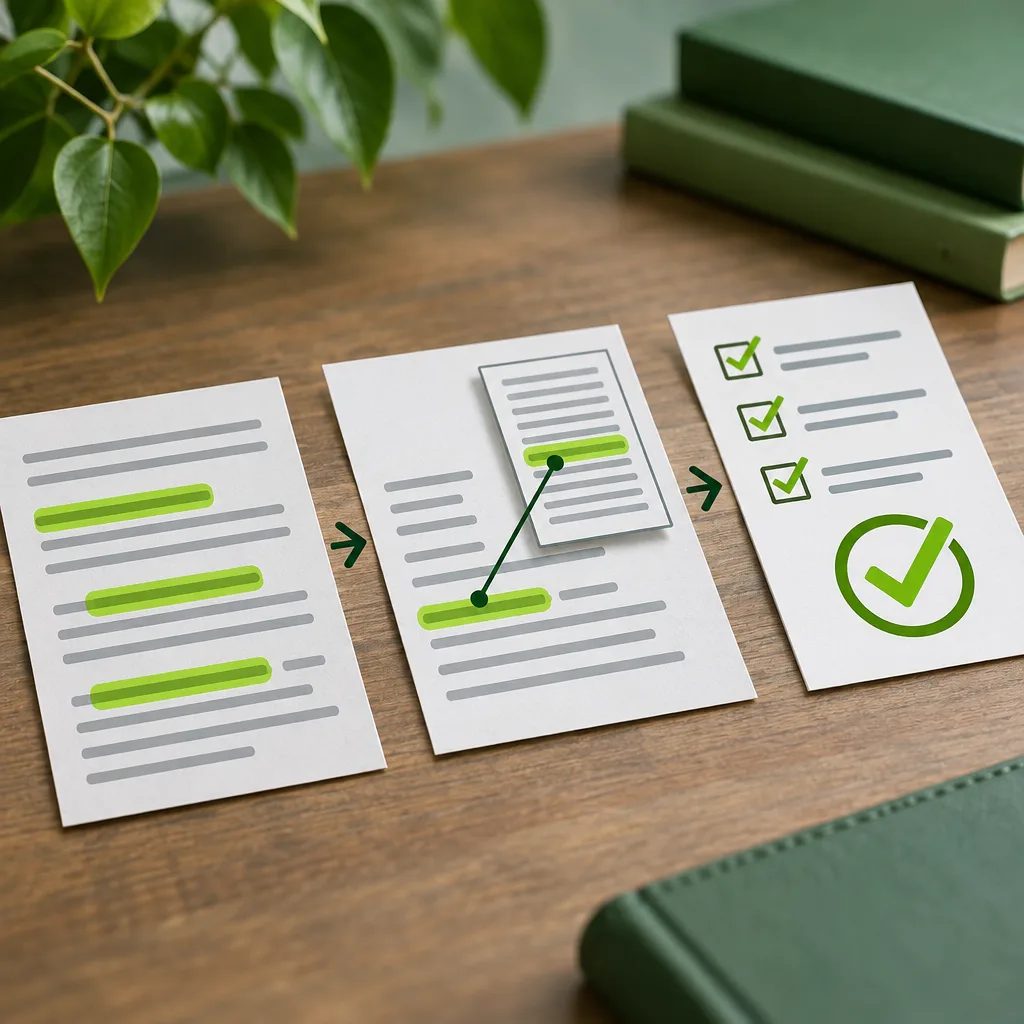
Mark every checkable claim. Read each sentence and highlight factual assertions, including comparisons, promises, dates, figures, names and quotations. Include claims implied by headings.
Match claims to evidence. Open each cited source and locate the passage supporting the assertion. Record whether it supports the exact wording and scope rather than just the topic.
Check your own offer. Compare product descriptions, pricing and policy statements with your current approved records. Revise anything that overstates availability, omits conditions or describes a planned capability as available.
Resolve unsupported wording. Correct errors, narrow claims to what the evidence supports or remove them. Recheck surrounding sentences so an edit does not leave a misleading conclusion.
Review beyond the body. Apply the same checks to the title, meta description, structured data and image alt text. Keep their claims consistent with the corrected article.
Approve, then publish. Have the reviewer examine factual changes and any legal, regulatory or brand-fit concerns. Publish only the approved version, then inspect the live page.
How to trace each claim, number, name and quote to a primary source
Follow the citation trail. Start with the cited article, then follow its references to the original study, dataset, announcement or recording. Save the precise passage or timestamp, not just the homepage.
Check numbers at their origin. Compare the figure with its table or underlying results. Keep the unit, denominator, population, time period and conditions attached. Distinguish percentage changes from percentage-point changes.
Verify names and dates. Use the relevant person’s or organization’s own published record to check spelling, role and event date. Separate publication dates from the dates events occurred.
Find quotes verbatim. Locate the original transcript, recording or written statement. Check the speaker, exact words and surrounding context. If you paraphrase, remove quotation marks and preserve the meaning.
Match the claim’s strength to the evidence. Treat an organization’s statement about itself as its claim, not independent proof. Where the original supports only a narrower point, rewrite accordingly. Remove wording that you cannot tie directly to a specific supporting passage.
What Google says about reviewing AI-generated content
In its October 1, 2026, report, ppc.land describes Google’s guidance as calling for manual review of all AI-generated content for accuracy and trustworthiness before publication. The report explicitly includes title elements, meta descriptions, structured data and image alternate text within that review.
Treat those elements as part of the article’s factual claims, not merely packaging. Use this final consistency pass:
Title: Ask whether the headline promises more certainty or a broader result than the evidence supports.
Meta description: Check whether its short summary preserves qualifications that matter to the reader’s decision.
Structured data: Compare factual statements with the approved article; remove assertions that the article does not substantiate.
Image alt text: Describe what the image shows without adding unsupported identities, locations or conclusions.
Keep this pass separate from proofreading: readable wording is not your approval criterion. Approve each element only when its factual meaning matches the checked article, and carry any necessary correction through every place where the same claim appears before you publish.
Check claims about your own product, pricing and policies
For our content, use available safeguards and review as appropriate for your automation mode, covering factual accuracy, legal or regulatory requirements, and brand fit.
Product claims: Compare each promise with your approved product information. Check who gets the capability, what it does, and whether it is available now or only planned.
Pricing: Match the amount, currency, billing period and applicable conditions to your approved prices. Keep trial terms, eligibility and any exclusions attached to the offer they describe.
Policies: Compare refund, cancellation and other policy statements with the wording your business has approved. Resolve conflicting versions with the person responsible before keeping a claim.
Approval: Route product and commercial changes to their owners, and legal or regulatory claims to a qualified reviewer. Ask your brand reviewer to assess promises and tone. Record who approved the exact final wording and when; if later edits change its meaning, return that wording for approval rather than carrying the earlier sign-off forward into the revised article.
How to tell your fact-check worked
Use a handoff test rather than another read for fluency: could a colleague explain why each factual statement survived the review without asking you? Treat the article as ready only when the review record makes those decisions clear.
Traceable evidence: For every retained claim, the record identifies its supporting passage and shows how it supports the final wording, including important conditions.
No unresolved claims: Each flagged assertion has a recorded outcome: corrected, narrowed or removed. An unanswered comment should mean the draft is not ready.
Consistent presentation: Your completed review covers the headline, metadata and image text as well as the body, with no abandoned claims left outside the article.
Version-specific approval: The approver has signed off on the exact version queued for publication, not an earlier draft.
As a final spot test, choose a consequential claim and follow its evidence trail from the finished wording. If that handoff fails, reopen the review before publishing.
Troubleshooting common problems
Use these recovery actions when a check stalls, rather than polishing wording around an unresolved factual problem.
No source turns up: Stop searching once you are only finding copies of the same assertion. Remove the claim or replace it with a narrower statement you can substantiate. Do not substitute the AI’s explanation for evidence.
Sources conflict: Compare what each source actually measures, including dates, populations, definitions and scope. If they answer different questions, separate the claims. If the disagreement remains material, describe it with attribution rather than choosing the more convenient version.
Quote cannot be found: Remove the quotation marks only if you have evidence for a faithful paraphrase. Otherwise, delete the passage. Do not reconstruct a speaker’s words from memory or an AI rewrite.
Draft keeps failing checks: Set it aside. Build a fresh outline from supported points, then write again. Reuse only passages that pass review, not sentences whose main appeal is how polished they sound. Treat repeated failures as a reason to restart verification.
Offline Dragon Alternatives for Mac You Can Buy Once
The short answer: offline Mac dictation you can buy once
Yes—there are pay-once options for local Mac dictation. For replacing Dragon’s speech-to-text role, consider the following shortlist. Choose around where you want the text to land, your Mac’s hardware, and whether you want a lifetime license rather than a recurring plan.
Press our hotkey, speak, and text lands at the cursor in your current desktop app. We require macOS Sonoma 14+ and at least 4 GB RAM; Intel Macs are supported, with Apple Silicon recommended. Consider us for cross-app voice drafting.
VoiceInk is another local/offline Mac option without a subscription. The New York Times’ Wirecutter reports a $25 one-time purchase for offline dictation on iPhones and newer M-series Macs. It belongs on your shortlist if you use Apple Silicon and prioritize a low upfront cost.
Superwhisper runs entirely on your Mac when using its local Whisper models, without transmitting audio. Sprecho.ai reported in October 2026 that it offered a US$249.99 lifetime option alongside monthly and annual subscriptions. For this requirement, the relevant combination is the lifetime option with local models.
SpeakMac also merits consideration: aidictation.com described it in March 2026 as a practical Dragon alternative for Mac users seeking local dictation and a simple one-time purchase model.
Whisper Notes is available on Mac and iPhone, with offline transcription running locally on Apple Silicon. Speakwiseapp.com reports a $6.99 one-time purchase. Consider it if local transcription is your main requirement.
Leave cloud-dependent options off a strictly offline shortlist: Wispr Flow needs internet access to recognize speech; Microsoft Word Dictate has no offline dictation model on any platform; and Mobius Scribe is primarily cloud-assisted, not fully offline.
Is Dragon still an option on Mac?
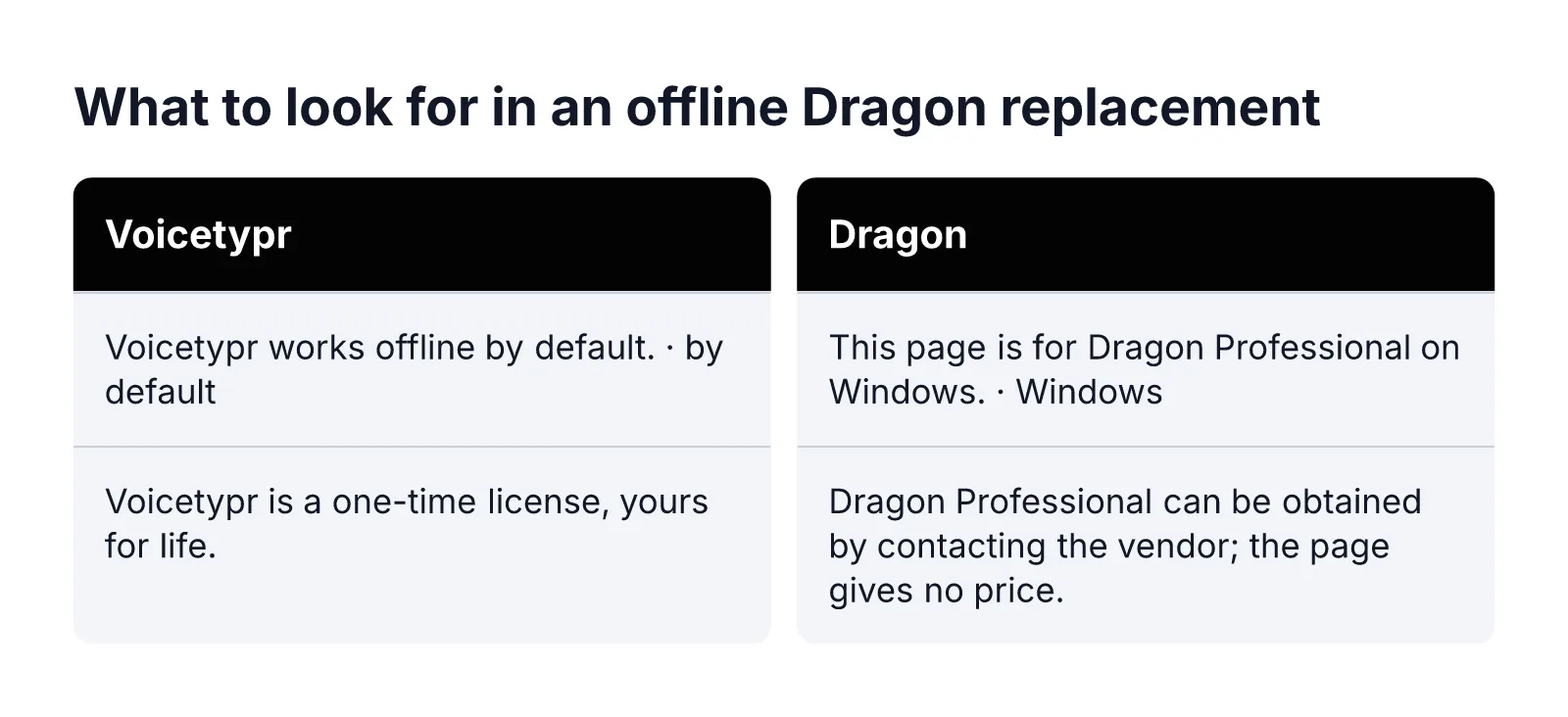
Dragon Professional v16 is a Windows product, optimized for Windows 11 and backward-compatible with Windows 10. That makes it a different purchasing proposition from a native Mac dictation app. If your requirement is to speak directly into your everyday Mac workflow, treat that platform distinction as the starting point—not as a minor detail to resolve after choosing a license.
How it is sold and priced: Dragon Professional has a vendor-contact purchasing route, with no listed price. For a pay-once shortlist, do not assume either a particular upfront cost or a subscription model from that sales route alone. A contact-based offer and an explicitly priced lifetime license are different kinds of buying information.
For organizations, Dragon Professional also offers volume licensing with the Nuance Management Center. That combination enables deployment, management, and sharing of custom words, commands, and auto-texts across users. Those are relevant capabilities if you are choosing software for a team rather than simply replacing your own typing. They should not, however, be treated as evidence of Mac compatibility or of an individual license’s price.
If you are coming from Dragon, separate what you want to keep from the product name. Is your essential task turning speech into prose, or does your workflow depend on shared vocabulary, commands, and reusable text? Use that distinction to frame your comparison: a tool suited to drafting paragraphs may not be the right replacement for a command-heavy workflow.
For this article’s narrower requirement, keep three questions separate: does the candidate run on your Mac, can its transcription work offline, and is the license explicitly sold as a one-time purchase? Meeting one condition does not establish the other two.
What to look for in an offline Dragon replacement
Use the same practical test for every candidate: can it handle your everyday writing in the way you want to work? Treat offline processing, ownership cost, and correction effort as separate criteria rather than letting one attractive feature decide the purchase.
Keep the transcription on-device. On-device transcription keeps recordings out of the cloud. For a strictly offline workflow, make local processing a requirement for the transcription you intend to use—not merely a preference. Judge the workflow you will actually run, rather than choosing on the strength of the word “offline” alone.
Compare total cost, not just the purchase price. One-time licenses trade a larger initial payment for no recurring dictation bill. Their value depends on how long you expect to use the app and which features you need. Compare free built-in options, subscriptions, and desktop licenses against your actual workflow; avoid paying for scope you will not use.
Test a real writing task. Start with a low-risk draft you can easily compare with your current method. Choose something representative, such as an issue description, review comment, or documentation paragraph. Include correction and review time in the comparison, rather than judging only how quickly spoken words become text.
Evaluate your own speech and vocabulary. Recognition varies with voice, microphone, language, model, and vocabulary. Include names, numbers, homophones, and specialist terms in your test, then review those carefully. A supported language or a larger model does not guarantee equal accuracy for your speech.
Test command-dependent work separately. If your tasks require navigation, command grammars, or structured code editing, look for a code-aware voice-control system. Make those requirements explicit in your trial instead of treating successful prose dictation as proof that the same tool will handle structured editing.
Voicetypr · Dragon
Voicetypr: offline by default, one-time license
Our default speech-recognition engines are on-device Whisper and Parakeet models. After the required model setup, we can transcribe without an internet connection, processing speech on your machine rather than uploading audio to the cloud. This makes our local workflow a fit if your priority is offline prose dictation rather than a cloud transcription service.
Offline transcription is distinct from an entirely disconnected lifecycle. Our licensing, model downloads, and updates have separate network dependencies. Optional cloud speech and AI formatting are separate workflows: when you enable them, they may send audio or text respectively. For an offline trial, use downloaded local models and leave those optional workflows out of your test.
Price and ownership: our one-time licenses start at $39, with a $69 option covering two devices. You can choose one, two, or four activations when buying. The license is yours for life, with no recurring fees, and purchases include access to software updates we release for the product. Choose the activation count around the computers you intend to use, rather than treating the starting price as the two-device price.
Our free three-day trial needs no card and includes full access to all features. Individual purchases carry a seven-day money-back guarantee from the purchase date. Use the trial to complete model setup and try a disconnected writing session before deciding whether to buy.
Best fit: we recommend our app for prose such as prompts, issue notes, review comments, and documentation. We do not provide code-aware navigation, command grammars, refactoring, or verified IDE integrations, and we do not reproduce Google Docs voice-editing commands. If those are central to your Dragon workflow, assess them separately from the quality of a dictated paragraph.
MacWhisper: better for recordings than inline dictation
MacWhisper is worth considering when your starting point is recorded audio rather than a text cursor. Sprecho.ai reported in October 2026 that it transcribes audio files locally using Whisper. That makes it a candidate for the offline-transcription side of this shortlist, especially if you want to turn existing recordings into text rather than mainly dictate while writing.
One-time pricing: Sprecho.ai reported a €59 one-time price in October 2026; lumevoice.com separately reported €65 one-time. Both describe a pay-once purchase, but the reported amounts differ. Treat those figures as attributed price reports, not a single current checkout price. For your shortlist, the useful distinction is the reported one-time purchase model rather than a recurring subscription.
Does it dictate into any app? In Sprecho.ai’s October 2026 account, system-wide dictation is a secondary, basic feature in the Gumroad version and is absent from the App Store version. Do not treat those editions as interchangeable for a Dragon-style inline workflow. If cross-app dictation is your main reason to buy, that edition distinction matters more than its ability to transcribe an audio file locally.
Who it suits: aidictation.com argued in March 2026 that MacWhisper is not the strongest direct Dragon replacement for inline dictation, but is better suited when meetings, voice memos, and imported audio are part of the workflow. It recommended MacWhisper when recordings and imported audio matter as much as live dictation. Our recommendation is to consider it for that mixed workload, rather than choose it primarily as a cursor-first typing replacement.
The practical dividing line is where your work begins: with audio you already have, or with words you want to enter into another app right now. Put MacWhisper higher on your personal shortlist for the former, not automatically for the latter.
macOS built-in Dictation: the free baseline
Apple Dictation deserves a place in this comparison even though it is not a license you buy. In March 2026, aidictation.com described it as built into the Mac and requiring no purchase. For a reader avoiding subscriptions, that makes it a useful starting point: decide whether the included option meets your needs before choosing a paid replacement.
Offline capability depends on the configuration. Sprecho.ai reported in October 2026 that Apple Dictation runs on-device on Apple Silicon for supported languages, and that audio goes to Apple’s servers where on-device processing is unavailable. The important distinction is therefore not simply whether you own a Mac: the reported offline capability has both hardware and language conditions. Do not read “built in” as meaning every dictation session stays local.
Lumevoice.com describes the boundary in practical terms: processing happens on the device for the languages listed in Keyboard settings; otherwise, it uses Apple’s servers. For an offline-only workflow, use that language-specific indication to distinguish a suitable configuration from one that relies on server processing.
Best fit: occasional, quick dictation. The New York Times’ Wirecutter describes Apple Dictation as showing text while you speak, recognizing punctuation commands, and recognizing text offline. It recommends the built-in tool for occasional, quick dictation. That is a sensible role for it here: an included way to enter short passages, rather than an automatic reason to purchase a separate app.
A relevant limit for Dragon users: Sprecho.ai reported in October 2026 that standard Dictation has no custom vocabulary. If adding specialist words is central to your workflow, weigh that limitation explicitly. Our recommendation is to keep Apple Dictation on the shortlist when brief text entry and no purchase matter most, provided your configuration meets your offline requirement.
How to choose if you’re coming from Dragon
Choose around the part of your Dragon workflow you actually want to preserve. Rather than naming one overall winner, make a short list of must-haves and use it to eliminate unsuitable choices. A useful final decision should identify both your preferred tool and the tasks you will still handle another way.
For a live-writing workload, prioritize the destination. Put our app on your shortlist when local raw transcription, a consistent desktop hotkey, and a one-time license are your requirements. Decide whether entering prose is enough before considering additional capabilities.
For a mixed audio workload, weight recordings explicitly. In March 2026, aidictation.com recommended MacWhisper when recordings and imported audio matter as much as live dictation. Make that distinction a purchasing criterion, not an afterthought.
For a budget-led choice, require a reason to buy. Aidictation.com recommended Apple Dictation as a free Mac fallback in March 2026. Write down what a paid option must improve for you before spending.
For command-heavy work, create a separate requirement. If navigation, command grammars, or structured code editing are essential, evaluate a code-aware voice-control system rather than selecting solely for prose entry.
For privacy-sensitive work, map the whole text journey. In our app, optional cloud speech can send audio, optional formatting can send text, and remote or LAN modes add another system. Local history can retain text, while the destination app receives what we paste. Decide which of those data flows are acceptable for your task; local speech recognition is only one part of that decision.
Finish with a simple decision note: “I need this for ___; my non-negotiable requirement is ___; I will handle ___ separately.” For task-specific starting points, explore our voice typing use cases. Choose the option that fits that statement—not the one with the longest feature list.
Will the tool you pick put a chapter draft straight into your writing app, or leave you with a recording to process afterward? That question matters more than any accuracy ranking, because the best dictation app for authors vs general dictation apps comes down to workflow, not a leaderboard.
Live dictation and transcription solve different jobs. A meeting recorder can handle several speakers and still be awkward for drafting prose, while a system-wide dictation tool may struggle with a recorded interview. Even the named categories split this way: Otter records lectures and meetings, Google Docs and the operating-system tools cover free drafting, and a dedicated app can add cross-app or local processing. Start by deciding whether you are composing directly or capturing audio for later review.
Then test in the real environment. A dictation app should put spoken text where you are writing, so check insertion into your actual editor and whether a transcript transfer is needed. Run a chapter-style trial that checks continuity, pauses, corrections, paragraphing, and names.
Choose the tool by whether you are composing prose or capturing audio
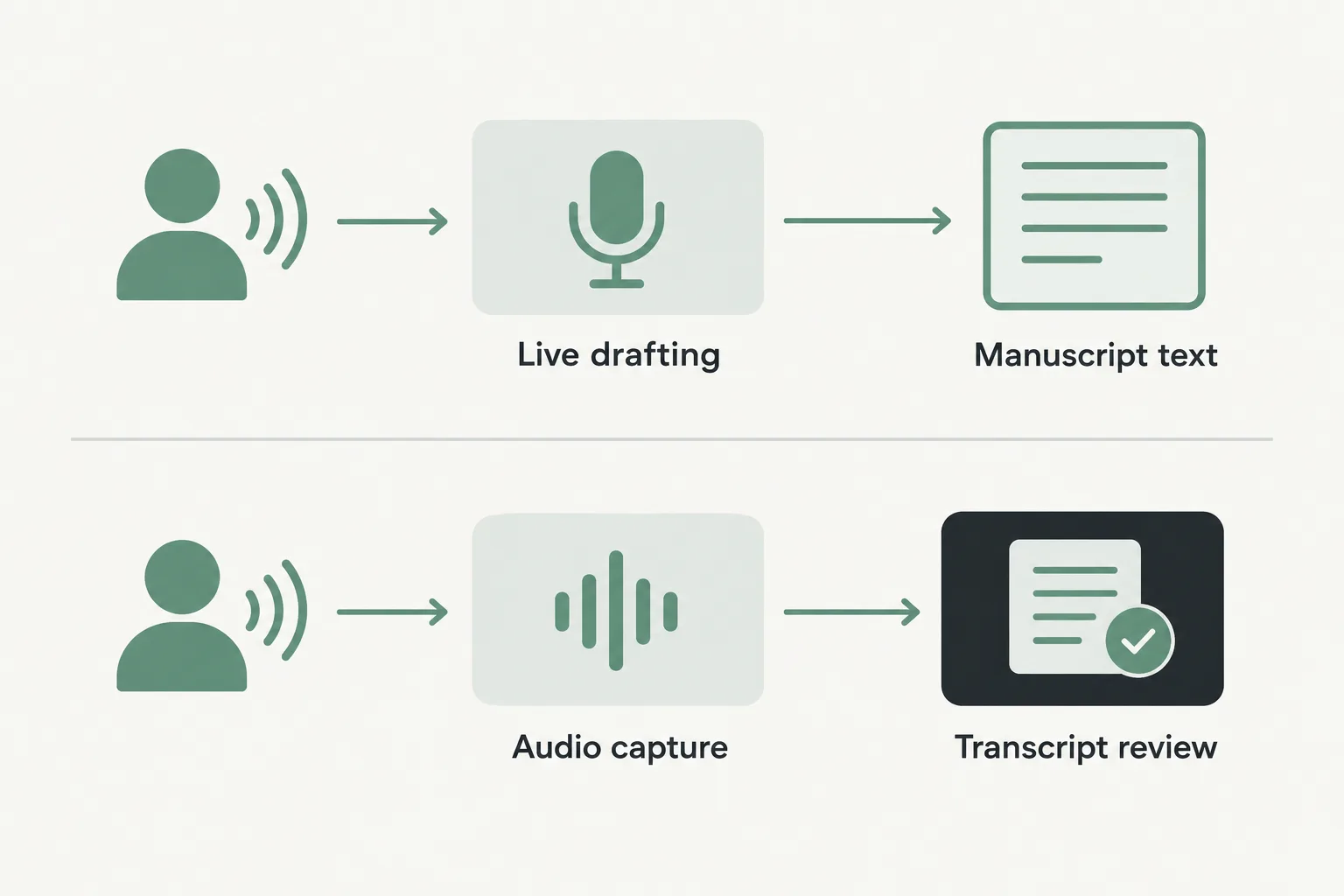
The distinction is practical, not academic. Live dictation puts the speaker’s words into an active text field as you speak; transcription captures existing audio and produces text for later review. A real dictation app puts spoken text where you are writing, whether that is your editor, browser, or draft document.
That difference decides the product. A meeting recorder can recognize several speakers well but still be awkward for writing an email, while a system-wide dictation tool may be excellent for short notes and poor at turning a recorded interview into a usable transcript. The lecture and meeting category serves a different job: recording a session, identifying speakers, and organizing searchable transcripts. A dictation tool enters your own speech into an active text field. One is built for capture and retrieval; the other, for direct writing.
Set a decision rule before comparing anything: choose around your real work. Drafting chapters into a document calls for direct text entry. Recording ideas or interviews for later calls for a recorder. Doing both means picking one of each, because no single tool wins everywhere. The right fit depends on where the text needs to land and how much review your workflow requires.
Test a tool on a real chapter before trusting it with long-form work
Draft one full chapter section with each candidate on your shortlist, not a greeting or a single sentence. A longer section lets you check pacing, pauses, restarts, and mid-sentence corrections that a quick note might not reveal. A meeting recorder can recognize several speakers well but still be awkward for writing an email, and the same logic applies here: match the tool to the job.
During the trial, check specific things. Does the app place paragraph breaks where you pause, or run sentences together? How does it handle punctuation, character and place names, and invented vocabulary from your story world? How do transitions between spoken sections read? Frame these as test criteria, not guaranteed features; you are evaluating, not assuming.
Ask practical questions before you commit time. Can a session be resumed if interrupted? Can the text be saved in your intended chapter structure? Do not assume any behavior here; confirm it for the specific product and version you are testing.
Finally, count the correction and reorganization each tool demands. The trial ends when you have text you can revise in your manuscript, not a transcript that merely looks complete.
Test text insertion in the writing app you actually use
The decisive test is simple: does the tool put text into Scrivener, Word, or Google Docs while your cursor sits in the manuscript? A dictation app should put spoken text where you are writing, so insertion behavior is a practical requirement, not an assumption. Open your real editor and watch where the words land.
Two workflows behave differently here. Direct entry drops text into the active writing field as you speak. A record-first workflow captures audio and returns a transcript you must review and move afterward: extra steps a chapter draft makes expensive. That mismatch is predictable: “A meeting recorder can recognize several speakers well but still be awkward for writing an email, while a system-wide dictation tool may be excellent for short notes and poor at turning a recorded interview into a usable transcript.”
Built-in tools are starting points, not proven manuscript solutions. Google Docs Voice Typing and the operating-system tools cover free drafting, within limits: Apple Dictation is a free Mac baseline, but check where the built-in option stops. For cross-app tools, verify insertion in the exact editor and text fields you use. A tool that fills a browser box may behave differently in Scrivener.
Judge correction effort, not an unsupported accuracy ranking
Ignore any vendor’s accuracy claim and rank the tools by your own correction burden. A tool that scores well on someone else’s benchmark can still hand you a draft that needs heavy repairs, and no public leaderboard knows your microphone, your accent, or your manuscript.
That matters because results are not stable across setups. Accuracy varies by microphone, accent, language, model, and environment, so the same tool can behave differently in your room with your mic than in a reviewer’s test.
So run a fair test. Dictate the same short passage into each shortlisted tool, then dictate a longer chapter section, because long sessions surface problems a single sentence never will. Put the outputs side by side.
Track four kinds of cleanup: missed words, punctuation and paragraph repairs, proper-name corrections, and text that must be moved or rewritten rather than nudged. The proper names include your characters, places, and any invented vocabulary from your manuscript.
Choose the tool whose cleanup load you can live with, matched to how you actually draft. If a tool’s style moves you closer to finished prose with less fixing, that beats any leaderboard or marketing number.
Match manuscript privacy and cleanup needs to the processing model
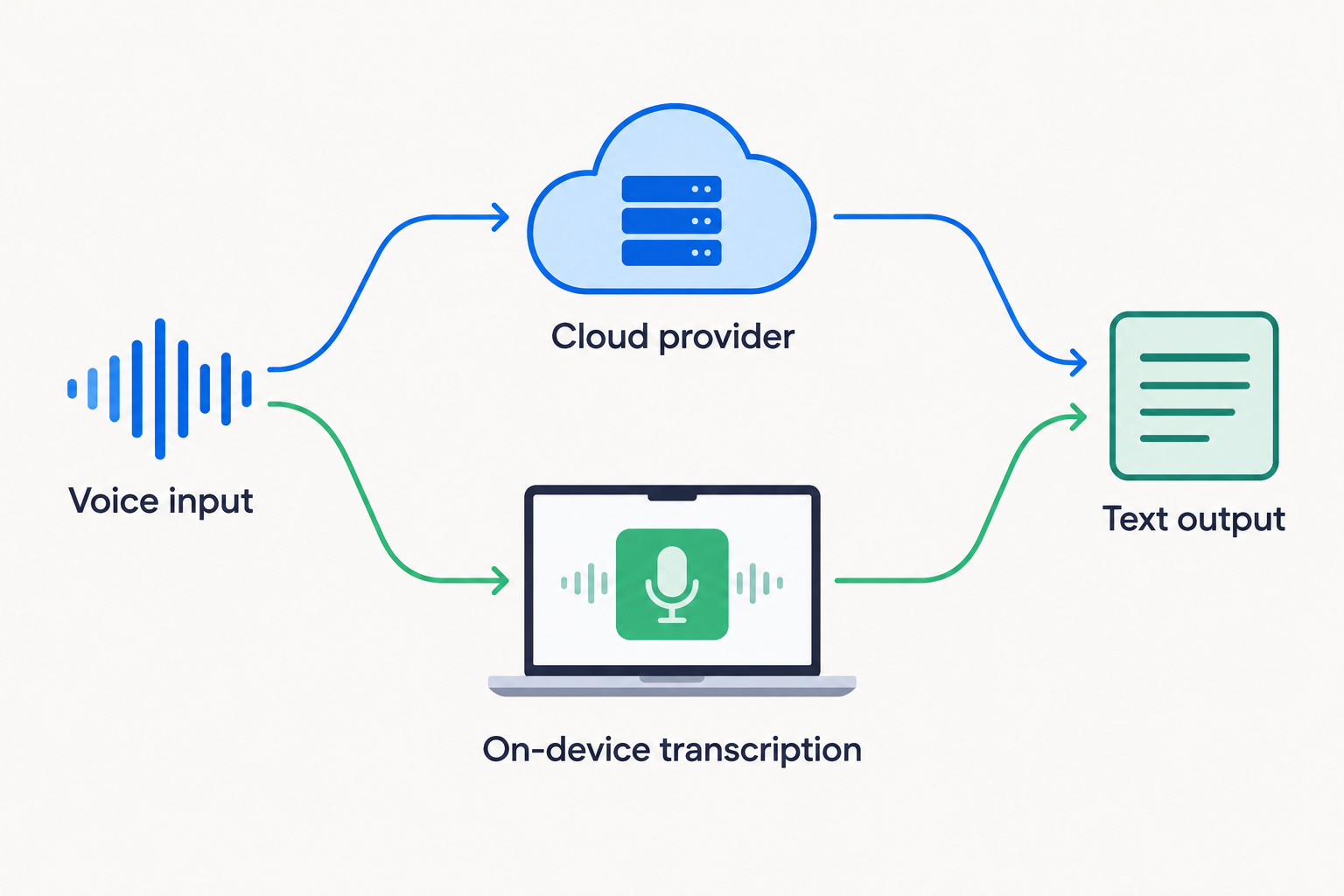
Before dictating unpublished work, find out where your voice actually goes. Some tools transcribe on-device, some stream audio to a provider’s servers, and some mix local transcription with optional cloud formatting. Those are three different data paths. The Mac dictation guide frames the privacy question exactly this way: check whether voice is transcribed on-device, sent to a provider, or mixed with optional cloud formatting.
Treat cleanup as a separate decision. AI rewriting is distinct from transcription, and enabling it can change how your words are processed. The offline dictation guidance says to define offline precisely, separating local transcription from setup, model downloads, license checks, updates, and optional AI formatting. Check the documentation for the specific mode you intend to dictate in before you read a chapter aloud. Do not assume every configuration handles audio the same way.
VoiceTypr fits authors who want local-first dictation on Mac and Windows: the source describes on-device transcription by default, so audio never leaves the device, with text insertion into every app you write in.
One habit ties it together. Review any AI-polished output against your intended voice before treating it as manuscript-ready prose.
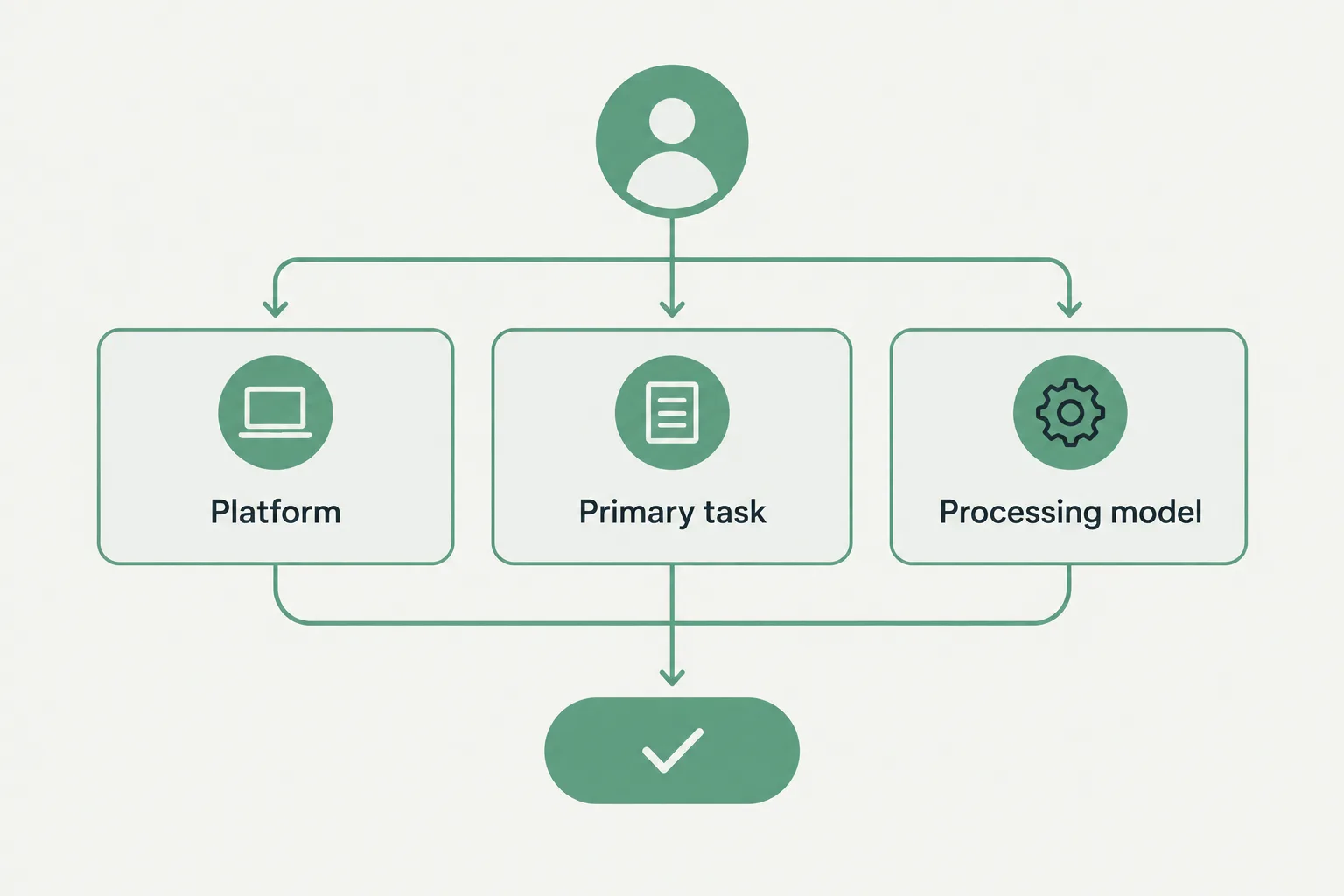
Build a shortlist around your platform and the job you need done
Start free, then narrow by the job. On a Mac, Apple Dictation is a free built-in baseline; Google Docs Voice Typing covers free browser drafting, and operating-system tools also cover free drafting. The catch is reach: the built-in option has to land in the field where you actually write.
If the job is capturing other people, pick a different category. The research recommends Otter for meeting recording and collaborative transcripts, and a meeting recorder can recognize several speakers well yet still be awkward for writing an email. Don’t expect it to behave like live manuscript dictation.
Windows authors who need deeper voice commands and professional documentation workflows have Dragon as one option the source identifies.
The same quick verdict also names Superwhisper for broad device support with local voice: a relevant entry if you write across several machines and want processing that stays local.
For drafting into any text field on Mac and Windows with local transcription by default, include VoiceTypr in the test shortlist. Then judge it against your real editor and correction workload, not a feature list.
Choose the workflow that puts text where you write, not the tool with the boldest accuracy claim. A dictation app should put spoken text where you are writing, so the deciding test is your manuscript, not a marketing table.
Run the same representative passage and the same chapter section through every candidate on your shortlist, inside the writing app you actually use. Then judge three things: whether the text lands in your editor, whether the correction burden is manageable in a longer draft, and whether the processing model suits your material. If you want offline dictation, unlimited use, and a predictable flat fee, weigh those criteria alongside where your drafts are processed.
And if your primary task is capturing other speakers, such as an interview, pick a recording tool instead. A meeting recorder can recognize several speakers well but still be awkward for writing an email. Dictate the draft; record the interview.
Best Dictation Software for Mac Buying Guide: Choose by Workflow, Privacy, and Price
With Apple Dictation already free on every Mac, what should you actually look for before paying for a dictation program? Start with the honest framing: the best tool depends on whether you want a free built-in option, broad device support, cloud-assisted polish, or local transcription with a lifetime license. That trade-off, not any accuracy leaderboard, drives this best dictation software for mac buying guide.
The free baseline still matters. You opened this guide because Apple Dictation isn’t enough. If your day means drafting in editors, chat boxes, and AI prompt fields, expect the same gap.
The shortlist here holds four bargains: Apple Dictation as the free baseline, Superwhisper for the broadest Apple-plus-Windows device coverage, Wispr Flow for a polished cloud service across desktop and mobile, and VoiceTypr for local transcription by default on Mac and Windows with pricing from $39 once. VoiceTypr is the pay-once pick: it supports macOS 13+ on Intel and Apple Silicon, adds a global hotkey for inserting text into whatever app is open, and keeps optional cloud engines plus a CLI and API for automation.
Four factors decide the rest of this guide. First, the job: dictation, transcription, and voice control solve different problems. Second, the data path: check whether voice is transcribed on-device, sent to a provider, or mixed with optional cloud formatting, and define offline precisely enough to separate local transcription from model downloads, updates, and optional AI cleanup. Third, where text lands: the text should land in the editor, browser, chat box, or prompt field you already have open. Fourth, the pricing model: free, subscription, or pay once.
None of that replaces a real-work test. Accuracy varies by microphone, accent, language, model, and environment, so dictate your actual material into your actual apps before any money changes hands.
Quick verdict: the right Mac dictation tool depends on the job, not a leaderboard
No single dictation app wins every job. The right Mac dictation tool depends on whether you want a free built-in option, broad device support, cloud-assisted polish, or local transcription with a lifetime license. Pick by the job first, then verify the pick against the apps you actually write in.
Four quick picks:
Free built-in baseline. Start with Apple Dictation if a free built-in tool covers your work. It ships with macOS and costs nothing extra. If it handles your email, chat, and drafting, you can stop there and skip the rest of this guide.
Broad device support. Choose Superwhisper for the broadest Apple-plus-Windows device coverage. If your dictation has to work on a Mac and a Windows machine, the comparison lands there.
Cloud-assisted polish. Choose Wispr Flow for a polished cloud service across desktop and mobile. This is the pick when your writing spans devices and you accept that processing happens in the cloud.
Local transcription with a lifetime license. Choose VoiceTypr for local transcription by default on Mac and Windows, with pricing from $39 once. For a pay-once app on both platforms, it is the most straightforward choice in the shortlist. Your voice is transcribed on your machine by default, and you are not adding another monthly subscription to the budget.
Treat these picks as starting points, not a ranking. Three checks settle most purchases: the job you need done, where your audio goes, and how you pay. The rest of this guide works through those factors in order, from the data path to the pricing model, so you can match a tool to your workflow instead of to a leaderboard.
Dictation, transcription, or voice control: which problem are you actually solving?
Most dictation disappointment comes from buying a tool for the wrong job. A dictation tool enters your own speech into an active text field. A lecture or meeting tool records, transcribes, stores, and organizes a session. These are different jobs, not one accuracy ranking. Pick a meeting recorder to draft an essay, or a dictation app to capture a recorded lecture, and no accuracy score will rescue you.
If that first split is where your decision stalls, we expand the dictation-versus-transcription distinction in a dedicated guide. Read it before shortlisting anything, because the tool for one job is rarely the tool for the other.
Voice control is a third category, and it overlaps with dictation less than the names suggest. Accessible dictation enters text. Voice control also clicks, navigates, and commands the OS. Apple Voice Control covers clicking and navigation on a Mac, and Windows Voice Access plays the same role on Windows. Dedicated dictation apps handle the other need: lower-friction text entry into the apps where you already write.
So sort your requirement into one of three buckets. Text entry, full navigation, and professional command environments are separate needs, and each points at a different kind of tool. A hotkey app that inserts drafted text where your cursor sits is a different purchase from a navigation layer. Match the tool to the problem first; an accuracy comparison built for one job tells you nothing about another.
Local or cloud? Decide where your voice goes before you compare features
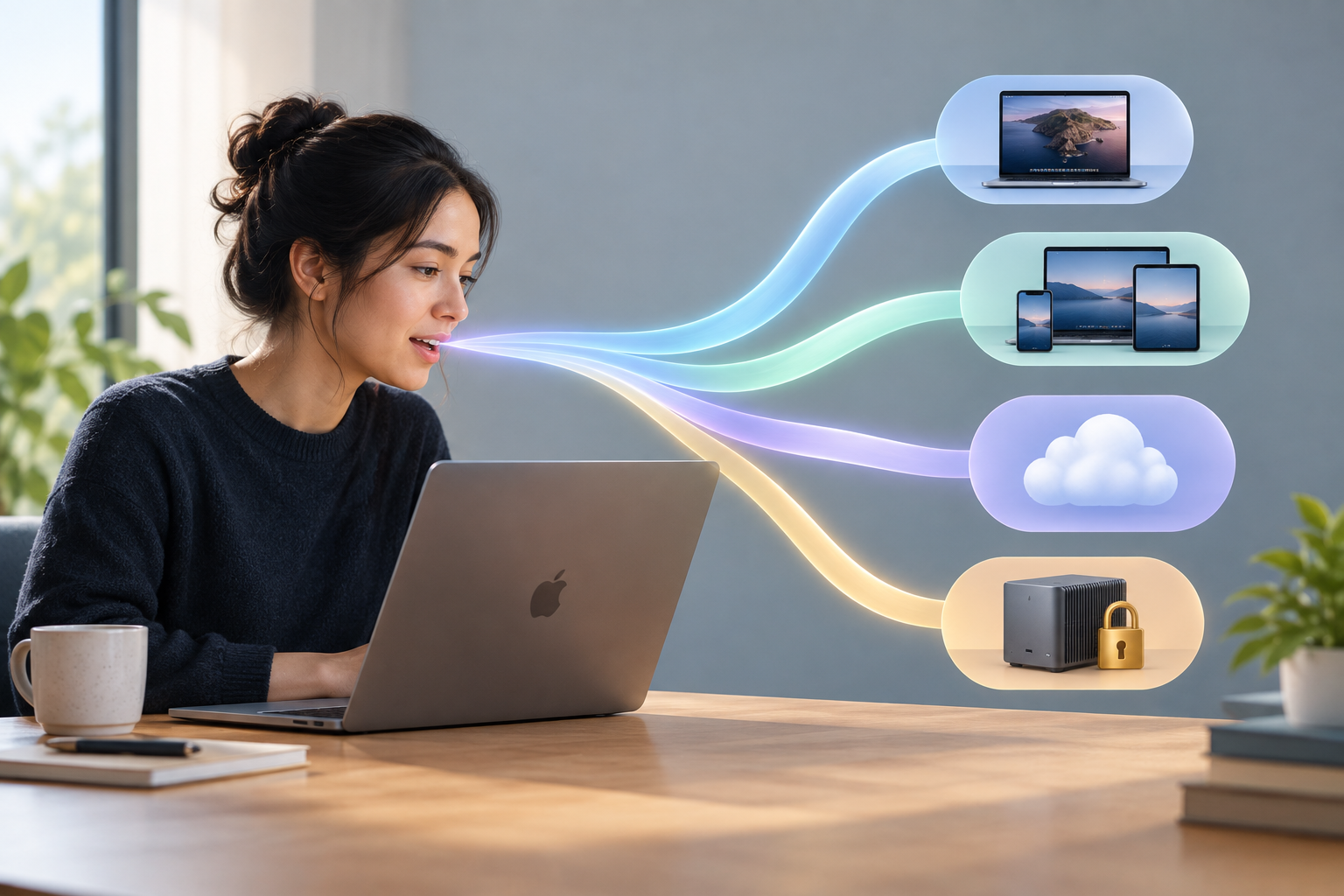
Decide where your voice goes before you compare anything else. Every dictation app sits on one of three paths: voice is transcribed on-device, sent to a provider, or mixed with optional cloud formatting. Which path you get changes what you can dictate safely, where you can work, and what happens when the connection drops. Treat the privacy model as a first-order buying criterion, not a footnote. For founders, developers, and creators drafting all day, this single decision narrows the field faster than any feature comparison.
“Offline” needs a stricter definition than most product pages give it. Separate local transcription from everything else that might still touch the internet: setup, model downloads, license checks, updates, and optional AI formatting. An app can honestly claim offline dictation and still require a download or a periodic check before it works. Ask which step actually processes your voice.
One checklist item separates genuine local-first tools from cloud tools with an offline checkbox: a documented local transcription path after any required model download. If the vendor explains exactly what runs on your machine once setup is done, you can verify the claim instead of trusting it. If that path is vague or missing, assume the cloud is load-bearing.
VoiceTypr fits this frame cleanly. Transcription happens on-device by default, with optional cloud transcription and AI text cleanup available but never required. You can keep drafting with no connection and nothing leaving the machine, then opt into cloud features later if a task wants them.
The practical test is quick. Read the vendor’s description of its data path, note which steps are local and which are optional, and reject any tool that cannot state clearly where your audio goes.
Why ‘works in every app’ beats raw accuracy for most Mac buyers
A dictation tool that can’t put words where you work is a toy, no matter how well it transcribes. The most useful capability to check before buying is whether the tool pastes into the editor, browser, chat box, or AI prompt field you already have open, instead of trapping output in a browser extension or a single transcript window.
The practical reason is easy to see. You dictate many times a day. You compare accuracy once. A few extra transcription errors cost seconds of correction. A tool that dumps text into a side window costs you a copy-paste trip every single time, and that tax compounds across email, chat, code comments, and prompts.
Offline dictation adds a wrinkle. Even if voice is processed entirely on your machine, the finished text still needs to land cleanly in the app where you are actually writing. Local processing answers the privacy question; it does nothing for insertion. Test coverage against your real targets: your editor, your mail client, your chat app, and the prompt field where you draft AI requests.
The buying criteria make this explicit. Practical text insertion beyond a single editor or transcript window is listed as a “good fit if” condition, alongside official macOS and Windows support and a documented local transcription path. If a candidate fails the insertion test in your apps, no accuracy claim rescues it.
The shortlist compared: four tools, four different bargains
Every tool on this shortlist makes a different deal with you. Apple Dictation is free because it already ships with macOS. Superwhisper trades simplicity for the broadest Apple-plus-Windows device coverage. Wispr Flow sells a polished cloud service across desktop and mobile. VoiceTypr sells local transcription by default on Mac and Windows, with pricing from $39 once.
Tool
The bargain
Good fit if
Apple Dictation
Free built-in baseline
A free built-in option is enough for your work
Superwhisper
Broadest Apple-plus-Windows device coverage
Your work spans Apple devices and Windows machines
Wispr Flow
Polished cloud service across desktop and mobile
You want a refined experience on desktop and phone and accept cloud processing
VoiceTypr
Local transcription by default on Mac and Windows, from $39 once
You want on-machine transcription by default and a one-time license with no subscription trap
The VoiceTypr row is the only one that needs unpacking, because it is ours. The app transcribes on your Mac or Windows machine by default and inserts the finished text through a global hotkey, so it lands in whatever app you were already using. Optional cloud engines and bring-your-own-key text cleanup exist for people who want extra polish, and a CLI plus API support agent workflows. None of that changes the default: your voice is processed on your machine unless you choose otherwise.
Whatever you pick, run it against the checklist this comparison is built on. It should work in every app, not just a browser extension. It should transcribe your voice on your machine by default. It should let you pay once, use forever, with no subscription trap. And it should come with direct support from the founder. Each row above answers those four differently, which is the point of a shortlist. Match the bargain to your constraint, then test the tool in the apps you actually write in before paying for it.
Pay once, subscribe, or stay free: what each pricing model really costs you
Every dictation app asks you to sign one of three deals: free built-in, monthly subscription, or pay-once lifetime. The honest way to compare them is total cost over years of daily use, not the first month’s price.
The three models behave differently. A free built-in option costs nothing because it ships with the operating system, and the buying guidance frames the whole market that way: the best Mac dictation tool depends on whether you want “a free built-in option, broad device support, cloud-assisted polish, or local transcription with a lifetime license.” A subscription looks small per month and compounds, so a tool you dictate into every working day keeps billing. A pay-once license front-loads the cost and stops there, which is why the source describes its preferred model as pay once, use forever, with no subscription trap.
That framing matters because dictation is an everyday tool. For daily-use accessibility software, “predictable ownership can matter as much as the first feature checklist.” Pricing durability is a stated buying criterion, not an afterthought. The trade-off runs both directions: a subscription keeps billing for as long as you keep dictating, while a one-time purchase only wins if you still want the same tool years later. Project the years, then compare.
Verifiability comes next. The buying criteria include “Transparent pricing or open-source availability that readers can verify” as a reason to shortlist a tool. If a vendor hides what you’ll pay after the trial, treat that as an answer.
VoiceTypr sits in the pay-once column: local transcription by default on Mac and Windows, “with pricing from $39 once.” For a pay-once app on both Mac and Windows, the offline-dictation guide calls it “the most straightforward choice in this shortlist.” Run your own years-long math before either model earns your card.
Check your macOS version and processor before you buy
Confirm your macOS version and processor before you pay for any dictation app. Compatibility is the cheapest checkpoint to clear and the costliest to skip: an app your Mac cannot run saves you nothing, no matter how good its feature list looks.
VoiceTypr supports macOS 13 and later on both Intel and Apple Silicon Macs. Other vendors draw the line elsewhere. Some support older macOS releases, and some add mobile devices on top of their Mac version. That spread is why “it’s a Mac app” tells you little until you read the specifics.
The processor half of the check matters just as much. On-device dictation runs on the machine in front of you, so the chip inside your Mac is part of the product spec, not a footnote. A local transcription app has to run on your processor, whether that chip is Intel or Apple Silicon.
Hardware and OS fit is one of the named checkpoints in this guide’s “how to choose” framework, alongside where text lands, the privacy model, and pricing. It decides whether any of the rest applies to you at all.
Before you buy, verify compatibility on the vendor’s own system-requirements page.
Buying for RSI, dyslexia, or low-friction typing? Match the tool to the trigger method
For buyers reducing keyboard load because of pain, fatigue, dyslexia, ADHD, RSI, or carpal tunnel, the decisive test is whether you can reliably use the tool’s trigger method on difficult days. A dictation app that demands a hotkey you cannot press when symptoms flare is the wrong app, no matter how good its transcription is.
Start by separating two jobs. Dictation enters text; OS voice control also clicks, navigates, and commands the system. If a hotkey is difficult to trigger, “use an OS voice-control tool, an adaptive input, or another setup that does not depend on that gesture.” Dedicated dictation fits buyers who can still trigger a hotkey and mainly want lower-keyboard-load drafting. VoiceTypr works that way across Mac and Windows, with local transcription by default.
Keep a fallback either way. Corrections and recovery work still need input, so “keep a keyboard, switch, or OS voice-control fallback for corrections and recovery.”
Before you pay, test the tool on real forms, messages, and documents, ideally including a bad-symptom day. The trigger method you can use on your worst day is the one that matters.
How to test any dictation app before you pay for it
Accuracy on a demo video tells you nothing. It varies by microphone, accent, language, model, and environment, so run the same material through every candidate in your own setup.
Work through this checklist before money changes hands:
Define the job. Live drafting into text fields, file transcription, and voice control are different problems. Pick the tool for the one you have.
Check the data path. Separate local transcription from setup, model downloads, license checks, updates, and optional AI formatting. Know what leaves your machine.
Confirm OS fit. Verify your macOS version and processor against the vendor’s requirements.
Dictate real working material into real apps. Feed it the same paragraphs, emails, and prompts in every candidate. Offline transcription still needs to land cleanly in the app where you are actually writing.
Count the correction workload. Test real forms, messages, and documents before depending on any option. Include the apps where the text must land and the cleanup you would do by hand.
Decide on the pricing model. Compare free, subscription, and pay-once against how often you will dictate. If local transcription by default and a lifetime license match your constraints, that narrows the field fast.
Pick the tool whose constraints match yours, then prove it on real work before any money changes hands. That is the entire guide in one instruction. The best Mac dictation tool depends on whether you want a free built-in option, broad device support, cloud-assisted polish, or local transcription with a lifetime license. Everything after that is detail.
Start with the free baseline. Spend a week using Apple Dictation on the tasks you actually do: email, docs, chat replies, code comments. It costs nothing, and it shows how much of your week built-in dictation already covers. Keep notes on where it fell short. If it holds up, you are finished shopping. If it stalls on long thoughts or cannot reach the fields you write in, move to the paid candidates.
Run each candidate through the five-step evaluation from the section above, using your own documents and the apps where you write. Same microphone, same material, same apps each time. Demo accuracy describes someone else’s microphone, accent, and environment. Your correction workload is the only test that matters, and no vendor can run it for you.
If your constraints are specific, name them and check the box. VoiceTypr offers local transcription by default on Mac and Windows, with pricing from $39 once. Cloud cleanup is optional, so check which transcription mode runs by default before you rely on it. For a pay-once app on both platforms, it is the most straightforward choice in this shortlist. Confirm your macOS version and processor are supported before you buy.
Then dictate a real deliverable, not a test sentence. The tool that survives a normal working week is the one that earns a place in your Dock.
Dictation vs Voice Control for Producing Text: Which One Should You Actually Use?
Do you want your voice to write for you, or to operate your computer? If the job is producing text, dictation is the tool, and voice control is the wrong buy for it.
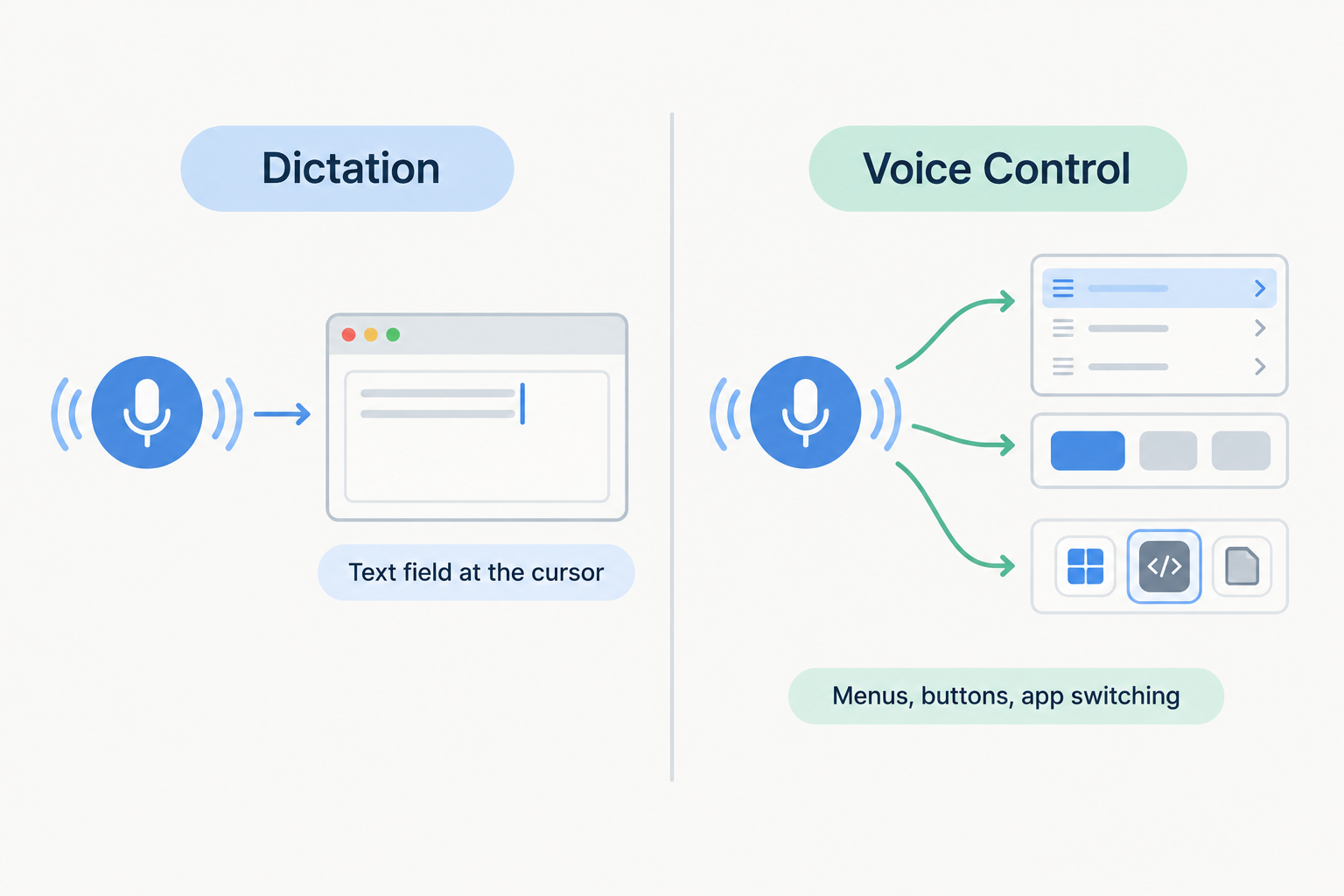
That is the honest answer to the dictation vs voice control for producing text question, and most guides blur it. The two do different jobs. Dictation converts live speech into text in a field. Transcription converts recorded audio afterwards. Voice control drives menus, clicks, and navigation across the whole device. Developer workflows even split the space into three jobs, dictating prose and prompts, building a speech pipeline, or controlling the computer hands-free, a distinction most roundups flatten into two. They are not entries on one accuracy leaderboard.
So the practical rule: writing in one app? Start with that app’s built-in dictation. Want text at the cursor in every app (editor, email, chat, browser)? A dedicated cross-app dictation tool covers that. Voice control earns its place for hands-free operation and accessibility, not for faster writing.
Error rates keep falling as dictation apps get better and AI models improve, so the keyboard is for tweaks rather than drafts.
Whatever you pick, test the microphone, your vocabulary, the target apps, and the correction effort before paying anything.
The rest of this guide sorts the terms, the built-in Mac and Windows options, and a simple decision framework.
Dictation writes. Voice control operates.
These are two different jobs-picking voice control when you only want text means paying a setup and learning tax for features you’ll never use.
Dictation is “intentional, structured speech designed to produce text.” Words land in the active text field-an editor, email, or prompt box-and modern tools accept spoken commands for punctuation, formatting, and navigation.
Voice control is the opposite: operating the computer. It lets users “traverse and control the entire screen with just their voices, giving them full access to every major function of the operating system”-text production is a side capability, not the point.
Dictation tools increasingly bundle light voice commands like “new line”-which is why the two get conflated-though commanding menus, buttons, and apps is far larger scope.
Dictation tools compete on where text lands and how it transcribes: Wispr Flow for cloud dictation across desktop and mobile, Superwhisper for broad device coverage with local voice models, Voicetypr for local-by-default text-at-cursor dictation on Mac and Windows with lifetime pricing-none competes on command coverage. Developer workflows split the space into three jobs-dictating prose and prompts, building a speech pipeline, or controlling the computer hands-free-with the middle job belonging to neither consumer category.
Emails, docs, code comments, or AI prompts? The text is the deliverable-dictation. Voice control earns its keep only when hands-free device operation is the need.
Where should the text land? The question that decides everything
Ask one question before comparing tools: where do the words need to appear? If the answer is a single destination, such as a document, a chat box, or an AI prompt field, you need dictation. If the answer is anywhere on screen, including buttons and menus, you are describing voice control. That single diagnostic settles most purchases.
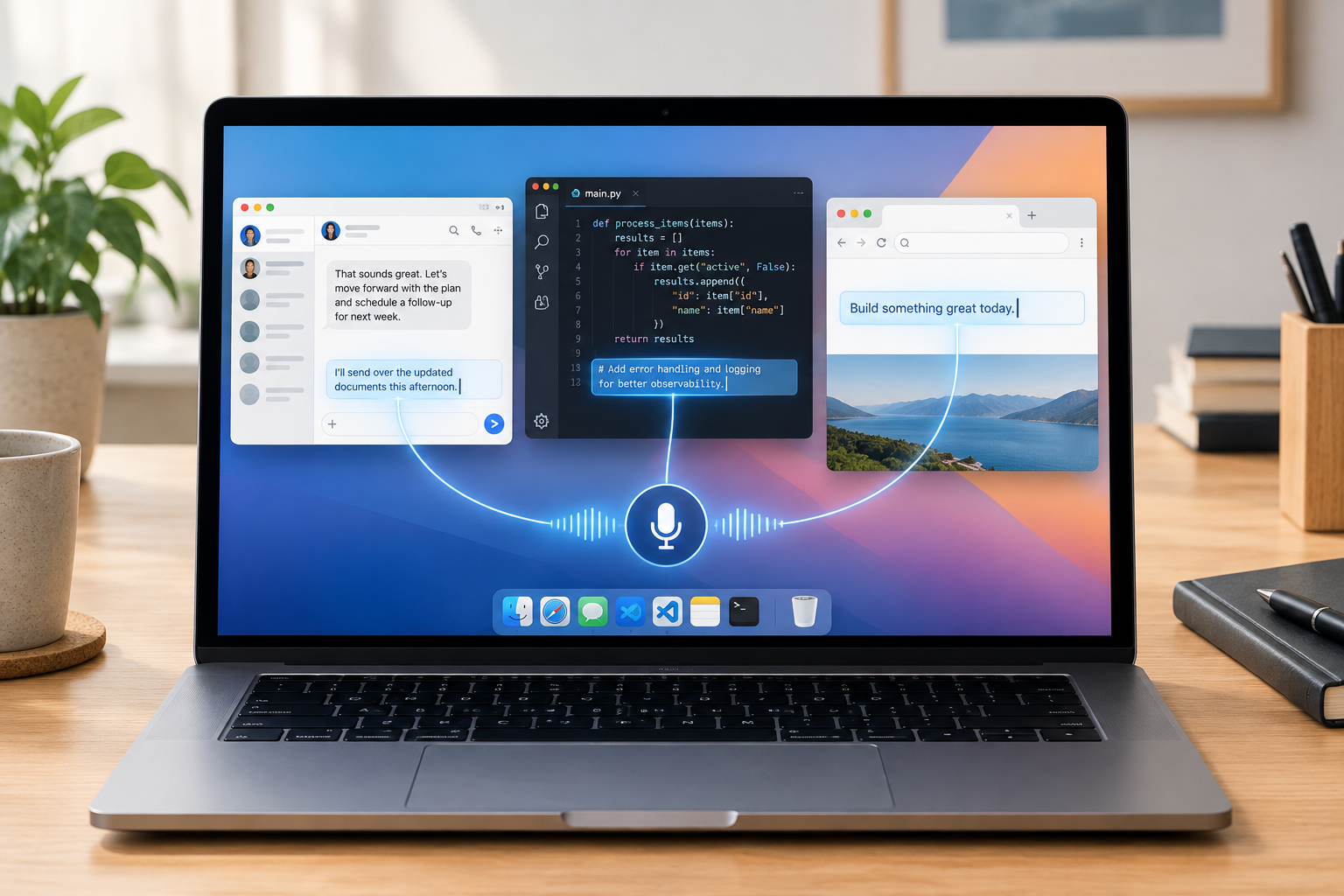
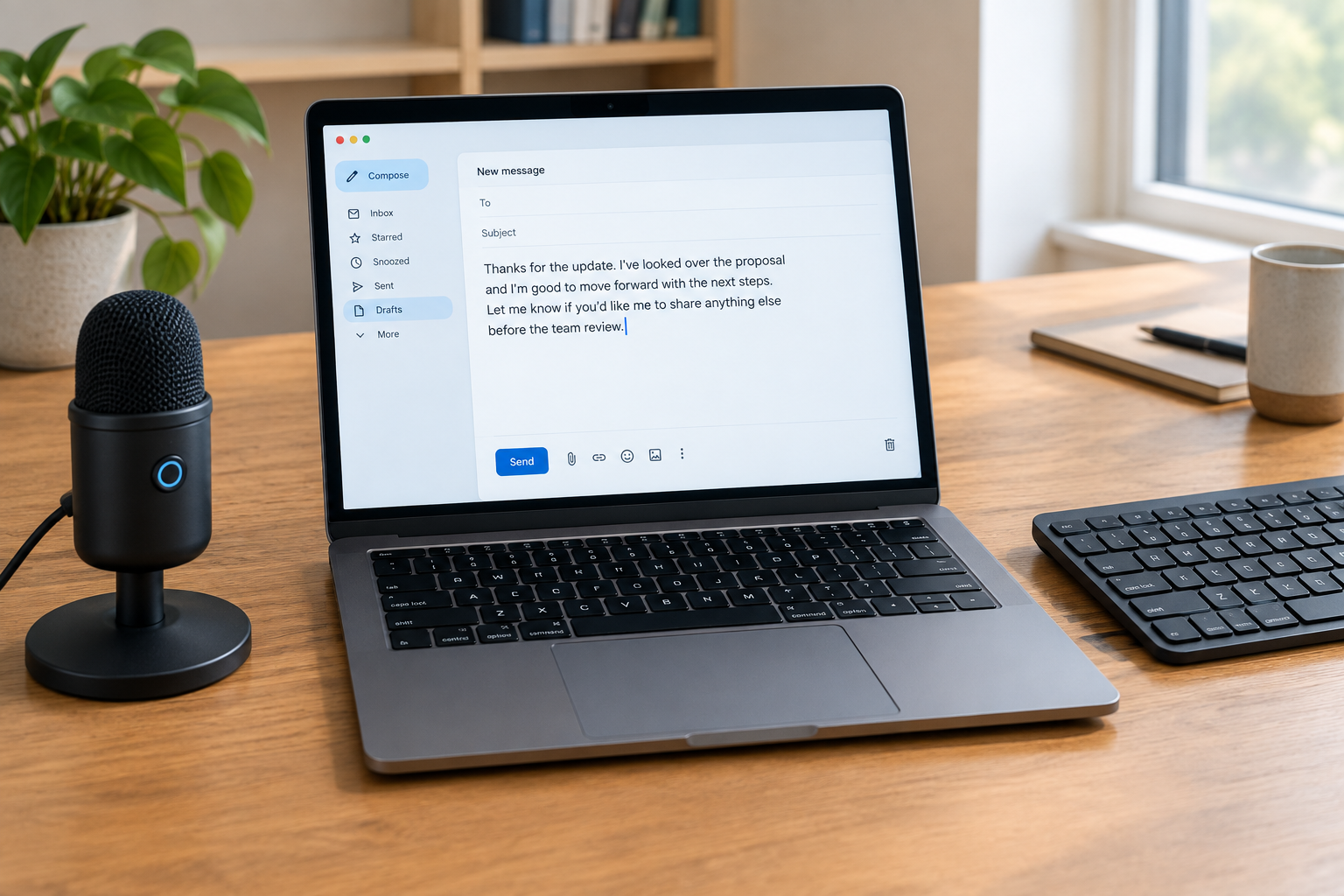
Apply it as a paste test. A useful Mac dictation tool should paste into the editor, browser, chat box, or AI prompt field you already have open. The same standard holds on Windows. Dedicated dictation runs system-wide: you press a hotkey, speak, and the text lands at the cursor in whatever app is active. Draft an email, prompt an AI chat, fill in a comment box. Same gesture every time.
Voice control reaches interfaces dictation cannot: buttons, menus, switching between apps. That strength serves hands-free computer operation. It matters only if your writing workflow requires GUI navigation you cannot do by hand. Most writers click fine. The voice exists to replace typing, not mousing.
So writers who produce prose, emails, prompts, and comments almost always fall into the first case. Your output is text, and text must land in the field where the work happens. Pick the tool that meets you there.
The built-in matchups: Apple Dictation vs Voice Control, Voice Typing vs Voice Access
Each platform splits the same way: one built-in tool writes text, the other runs the device. Pick by job, not by name.
Apple Dictation: purpose is free text entry into Apple text fields. When to use: you need words in a Mac document or field and want the free built-in baseline. Setup cost: minimal, because it ships with macOS.
Voice Control (Mac): purpose is running the whole device, with dictation included. Apple describes it as enhanced command and dictation where “Users can traverse and control the entire screen with just their voices, giving them full access to every major function of the operating system.” When to use: hands-free operation beats writing speed. Setup cost: heavier; it’s a separate, more involved mode.
Windows Voice Typing (Win+H): purpose is free connected dictation. When to use: you only need free dictation and can stay online. Setup cost: near none. Press Win+H and dictate.
Windows 11 Voice Access: purpose is offline hands-free control after setup. When to use: navigation and commands matter more than text entry. Setup cost: an explicit setup step before it’s usable.
One caveat for Windows readers on older machines: not everyone has Windows 11. Keep the older Windows 10 path visible instead of assuming one OS version.
For pure text production, the dictation side of each pair is the lighter tool.
When voice control earns its place (and when it’s pure overhead)
Voice control earns its place in three situations: accessibility, hands-free device operation, and scripted automation. If none of those describe your work, its command overhead buys you nothing.
Accessibility is the strongest case. A user who cannot, or prefers not to, use a keyboard needs whole-device control, not just text insertion. Apple’s Voice Control lets users traverse and control the entire screen with just their voices, giving them full access to every major function of the operating system. A dictation app that only writes text into a field cannot do that job.
Hands-free computer control is a real job too, and a different one from writing. Developer voice workflows split into “dictating prose and prompts, building a speech pipeline, or controlling the computer hands-free.” The control side covers hands-free navigation, voice commands, eye tracking, and Python scripting. Those needs justify a control-first tool; producing text does not.
If you can type and mainly want words on the screen faster, skip voice control. For text entry, use a focused local model rather than full OS navigation. Navigation commands sit between your thought and the field, and they only pay off when operating the device is the task.
One caveat before you pick a side: the sources support this job distinction, not benchmark claims about which mode is more accurate. Choose by the job in front of you.
Dictation, voice typing, transcription: clearing up the adjacent terms
Dictation is real-time; transcription is not. When you dictate, your own speech enters an active text field as you speak, so the words land where you type. Transcription works on pre-recorded audio afterwards, and the output usually needs post-processing before it is usable.
That distinction maps to two different jobs. A dictation tool enters your own speech into an active text field. A lecture tool records, transcribes, stores, and organizes a session. Otter is the example worth naming here: use it when the job is recording a lecture or meeting with permission, not speaking directly into an essay.
“Voice typing” causes most of the confusion, but it is just the casual name for the same speech-to-text job. Google Docs Voice Typing is the strongest free browser starting point for Docs, Apple Dictation is the built-in Mac baseline, and Win+H is the connected Windows baseline. All three are free drafting tools, not a separate category.
So the practical takeaway: if you are now weighing dictation against transcription tools, you have drifted from the original question. Producing text live means dictation. Capturing a lecture or meeting for later means a recorder like Otter. Pick based on when the text needs to exist, not on which term sounds closest.
A 3-step decision framework for text producers
Three steps settle it: name the job, pick the surface, check the privacy model. Run them in order, and the dictation-vs-voice-control question answers itself.
Step 1: Name the job. Writing prose, prompts, email, docs, and comments all point to dictation. Navigating the computer hands-free points to voice control. Developer workflows show the split clearly: dictating prose and prompts, building a speech pipeline, or controlling the computer hands-free are separate jobs, and the tool you pick should match the one you actually have.
The Zapier team puts it plainly: “With error rates consistently going down, thanks to both existing dictation apps getting better and the power of the latest AI models, this is the best time to pick your favorite speech-to-text software and leave the keyboard just for the tweaks.”
Step 2: Pick the surface. If you dictate in one app only, start with the built-in: Apple Dictation is the built-in Mac baseline, Google Docs Voice Typing is the strongest free browser starting point for Docs, and Win+H is the connected Windows baseline. Need the same voice input in every app on Mac and Windows? That is the case for a dedicated local-by-default dictation app with text-at-cursor insertion and lifetime pricing.
Step 3: Check the privacy model. For sensitive drafts (client work, unreleased plans, personal notes), prefer transcription on your machine by default rather than upload. Check whether voice is transcribed on-device, sent to a provider, or mixed with optional cloud formatting. And verify the setting during a trial or free tier before you pay.
Test it in your real apps before you commit
Every comparison guide lands on the same closing instruction: test the tool in your actual workflow before paying. The Windows guide says to test your microphone, vocabulary, target apps, and correction effort first. The developer guide narrows the point to code work: test any text-at-cursor tool in your actual editor and terminal before buying. The student guide repeats it for coursework: try the real learning portal, editor, microphone, and correction workload.
Correction effort is the hidden cost. A tool that transcribes a paragraph and leaves you a quick fix beats one with a longer feature list that leaves you rewriting the whole thing. Whichever tool lands finished text at your cursor with the fewest manual edits wins, whatever the marketing promises.
Check setup friction as well. Modern dictation should not require voice-profile training before it becomes useful in normal apps. A tool that demands voice-profile training spends your setup time up front.
Last, verify what marketing pages cannot show you. During a trial or free tier, dictate into the exact prompt fields and check the privacy settings you actually use. Then pay only for what survived the test.
If the job is producing text, use dictation. Voice control earns its place only when hands-free control of the computer is the actual need. The two overlap in demos and marketing, but they solve different jobs, and picking the wrong one costs you setup time and friction you never get back. Voice control can wait.
Timing is on your side. Error rates in dictation software keep going down, which makes now a reasonable moment to try the tool you already own instead of researching for another month. The trend favors beginners most.
So run the test this week, inside your real workflow. Turn on your platform’s built-in dictation option first, Apple Dictation on a Mac, Windows’ free dictation software on a PC, and draft one real email or document by voice in the app you already use, not in a test sandbox. If the words land where you need them and correction feels light, you have your answer. Stick with it. If you want the same voice input in every app on your machine, that is the moment to evaluate a dedicated local dictation tool. Leave the keyboard for the tweaks.