Best Dictation Software for Mac Buying Guide: Choose by Workflow, Privacy, and Price
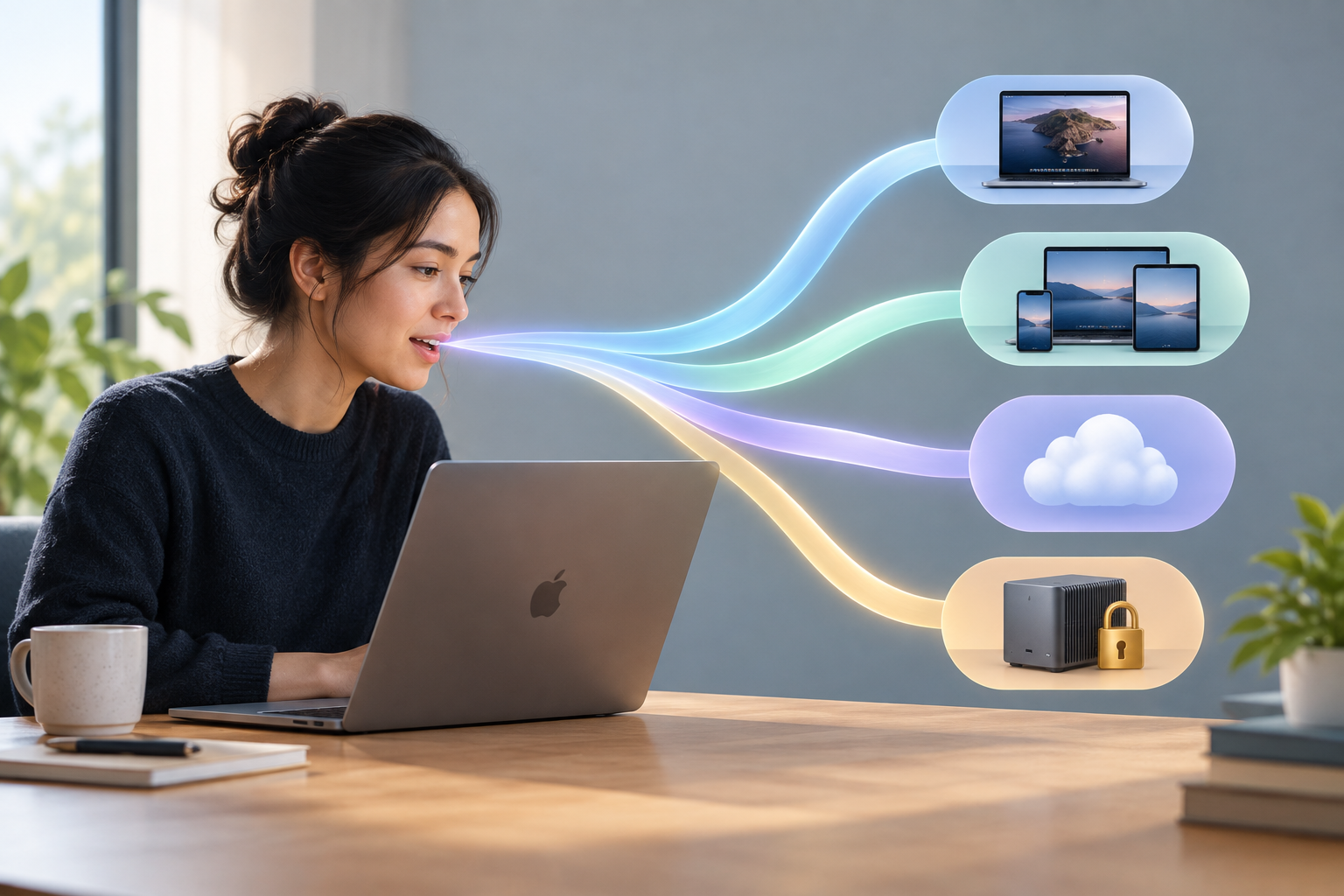
With Apple Dictation already free on every Mac, what should you actually look for before paying for a dictation program? Start with the honest framing: the best tool depends on whether you want a free built-in option, broad device support, cloud-assisted polish, or local transcription with a lifetime license. That trade-off, not any accuracy leaderboard, drives this best dictation software for mac buying guide.
The free baseline still matters. You opened this guide because Apple Dictation isn’t enough. If your day means drafting in editors, chat boxes, and AI prompt fields, expect the same gap.
The shortlist here holds four bargains: Apple Dictation as the free baseline, Superwhisper for the broadest Apple-plus-Windows device coverage, Wispr Flow for a polished cloud service across desktop and mobile, and VoiceTypr for local transcription by default on Mac and Windows with pricing from $39 once. VoiceTypr is the pay-once pick: it supports macOS 13+ on Intel and Apple Silicon, adds a global hotkey for inserting text into whatever app is open, and keeps optional cloud engines plus a CLI and API for automation.
Four factors decide the rest of this guide. First, the job: dictation, transcription, and voice control solve different problems. Second, the data path: check whether voice is transcribed on-device, sent to a provider, or mixed with optional cloud formatting, and define offline precisely enough to separate local transcription from model downloads, updates, and optional AI cleanup. Third, where text lands: the text should land in the editor, browser, chat box, or prompt field you already have open. Fourth, the pricing model: free, subscription, or pay once.
None of that replaces a real-work test. Accuracy varies by microphone, accent, language, model, and environment, so dictate your actual material into your actual apps before any money changes hands.
Quick verdict: the right Mac dictation tool depends on the job, not a leaderboard
No single dictation app wins every job. The right Mac dictation tool depends on whether you want a free built-in option, broad device support, cloud-assisted polish, or local transcription with a lifetime license. Pick by the job first, then verify the pick against the apps you actually write in.
Four quick picks:
- Free built-in baseline. Start with Apple Dictation if a free built-in tool covers your work. It ships with macOS and costs nothing extra. If it handles your email, chat, and drafting, you can stop there and skip the rest of this guide.
- Broad device support. Choose Superwhisper for the broadest Apple-plus-Windows device coverage. If your dictation has to work on a Mac and a Windows machine, the comparison lands there.
- Cloud-assisted polish. Choose Wispr Flow for a polished cloud service across desktop and mobile. This is the pick when your writing spans devices and you accept that processing happens in the cloud.
- Local transcription with a lifetime license. Choose VoiceTypr for local transcription by default on Mac and Windows, with pricing from $39 once. For a pay-once app on both platforms, it is the most straightforward choice in the shortlist. Your voice is transcribed on your machine by default, and you are not adding another monthly subscription to the budget.
Treat these picks as starting points, not a ranking. Three checks settle most purchases: the job you need done, where your audio goes, and how you pay. The rest of this guide works through those factors in order, from the data path to the pricing model, so you can match a tool to your workflow instead of to a leaderboard.
Dictation, transcription, or voice control: which problem are you actually solving?
Most dictation disappointment comes from buying a tool for the wrong job. A dictation tool enters your own speech into an active text field. A lecture or meeting tool records, transcribes, stores, and organizes a session. These are different jobs, not one accuracy ranking. Pick a meeting recorder to draft an essay, or a dictation app to capture a recorded lecture, and no accuracy score will rescue you.
If that first split is where your decision stalls, we expand the dictation-versus-transcription distinction in a dedicated guide. Read it before shortlisting anything, because the tool for one job is rarely the tool for the other.
Voice control is a third category, and it overlaps with dictation less than the names suggest. Accessible dictation enters text. Voice control also clicks, navigates, and commands the OS. Apple Voice Control covers clicking and navigation on a Mac, and Windows Voice Access plays the same role on Windows. Dedicated dictation apps handle the other need: lower-friction text entry into the apps where you already write.
So sort your requirement into one of three buckets. Text entry, full navigation, and professional command environments are separate needs, and each points at a different kind of tool. A hotkey app that inserts drafted text where your cursor sits is a different purchase from a navigation layer. Match the tool to the problem first; an accuracy comparison built for one job tells you nothing about another.
Local or cloud? Decide where your voice goes before you compare features
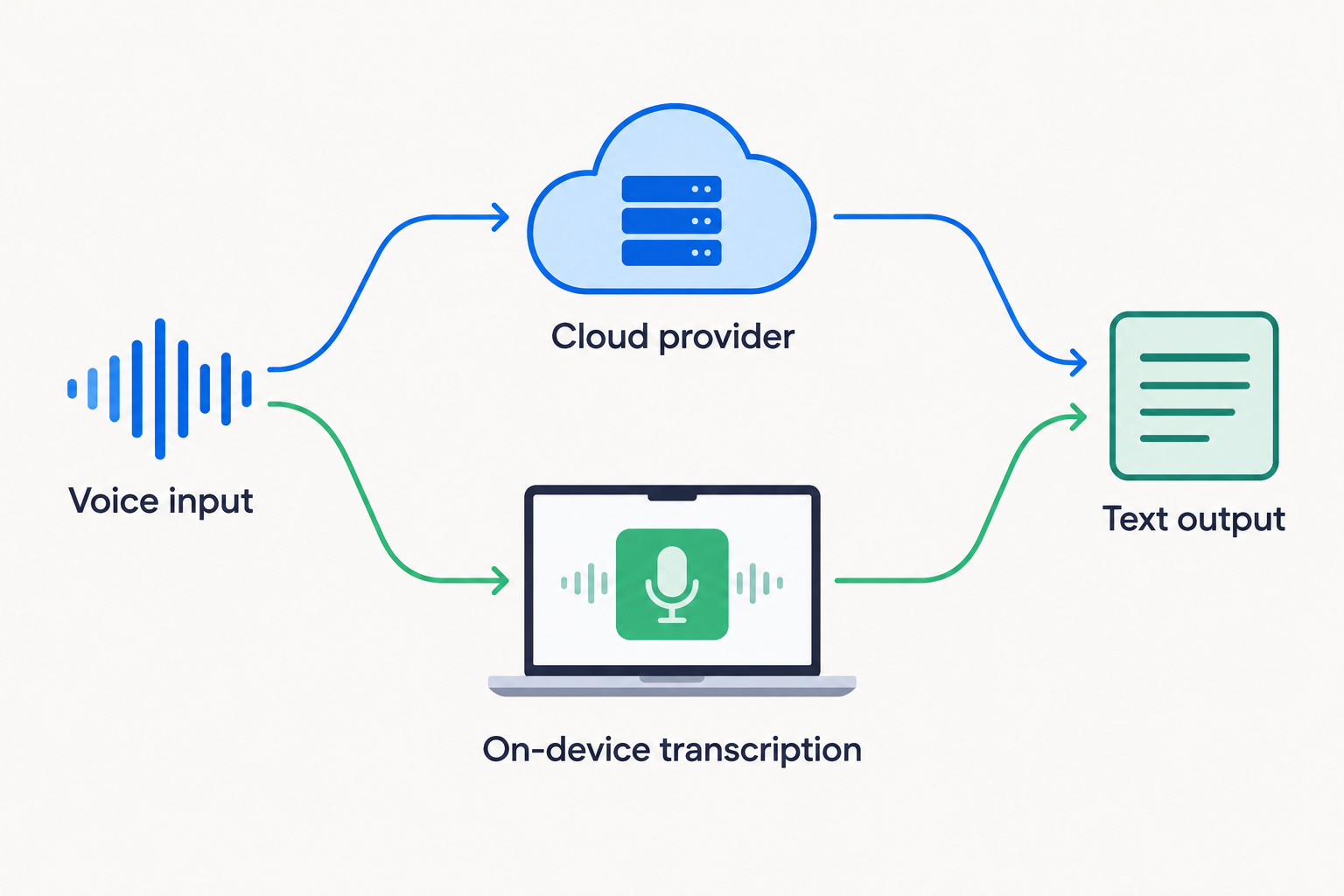
Decide where your voice goes before you compare anything else. Every dictation app sits on one of three paths: voice is transcribed on-device, sent to a provider, or mixed with optional cloud formatting. Which path you get changes what you can dictate safely, where you can work, and what happens when the connection drops. Treat the privacy model as a first-order buying criterion, not a footnote. For founders, developers, and creators drafting all day, this single decision narrows the field faster than any feature comparison.
“Offline” needs a stricter definition than most product pages give it. Separate local transcription from everything else that might still touch the internet: setup, model downloads, license checks, updates, and optional AI formatting. An app can honestly claim offline dictation and still require a download or a periodic check before it works. Ask which step actually processes your voice.
One checklist item separates genuine local-first tools from cloud tools with an offline checkbox: a documented local transcription path after any required model download. If the vendor explains exactly what runs on your machine once setup is done, you can verify the claim instead of trusting it. If that path is vague or missing, assume the cloud is load-bearing.
VoiceTypr fits this frame cleanly. Transcription happens on-device by default, with optional cloud transcription and AI text cleanup available but never required. You can keep drafting with no connection and nothing leaving the machine, then opt into cloud features later if a task wants them.
The practical test is quick. Read the vendor’s description of its data path, note which steps are local and which are optional, and reject any tool that cannot state clearly where your audio goes.
Why ‘works in every app’ beats raw accuracy for most Mac buyers
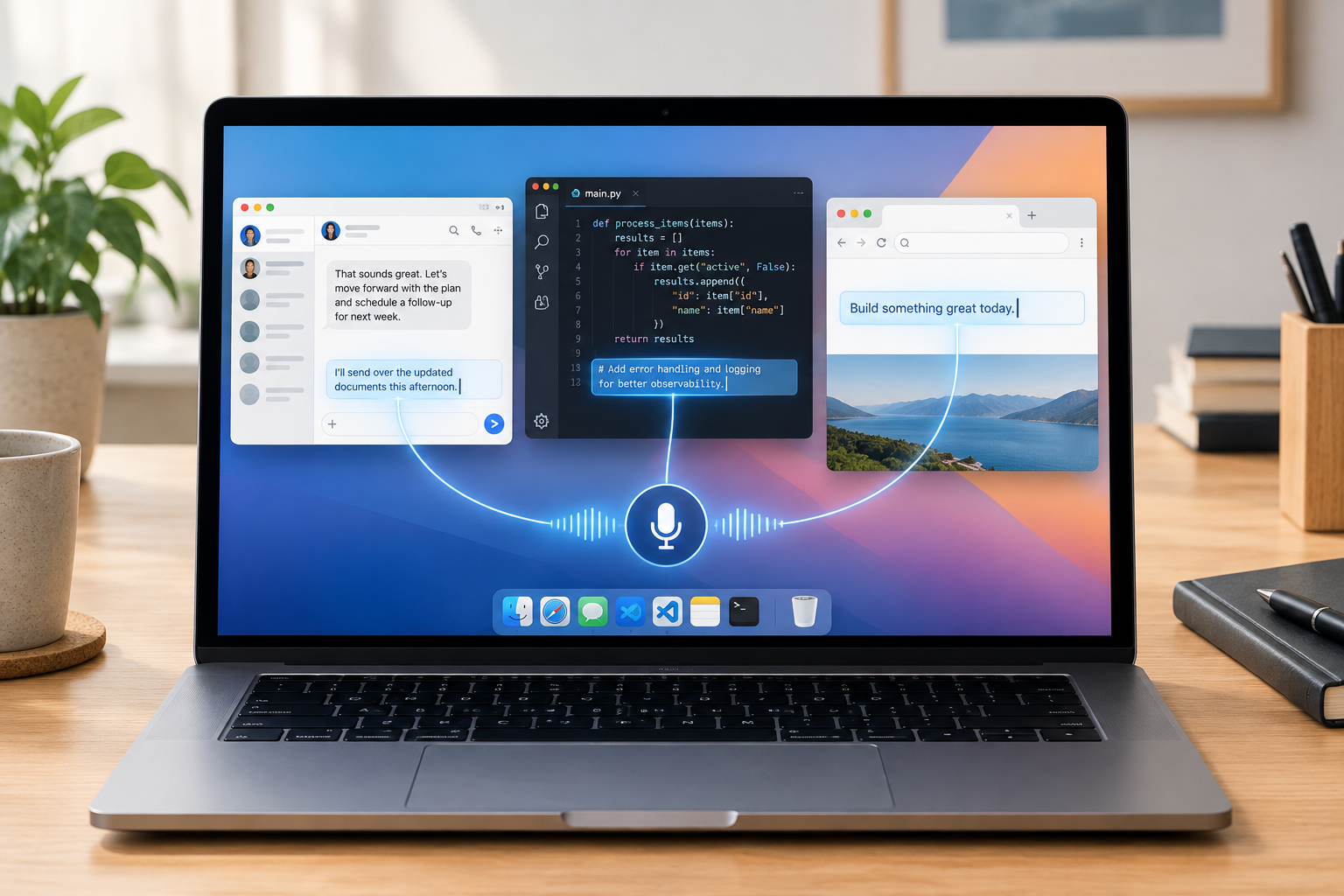
A dictation tool that can’t put words where you work is a toy, no matter how well it transcribes. The most useful capability to check before buying is whether the tool pastes into the editor, browser, chat box, or AI prompt field you already have open, instead of trapping output in a browser extension or a single transcript window.
The practical reason is easy to see. You dictate many times a day. You compare accuracy once. A few extra transcription errors cost seconds of correction. A tool that dumps text into a side window costs you a copy-paste trip every single time, and that tax compounds across email, chat, code comments, and prompts.
Offline dictation adds a wrinkle. Even if voice is processed entirely on your machine, the finished text still needs to land cleanly in the app where you are actually writing. Local processing answers the privacy question; it does nothing for insertion. Test coverage against your real targets: your editor, your mail client, your chat app, and the prompt field where you draft AI requests.
The buying criteria make this explicit. Practical text insertion beyond a single editor or transcript window is listed as a “good fit if” condition, alongside official macOS and Windows support and a documented local transcription path. If a candidate fails the insertion test in your apps, no accuracy claim rescues it.
The shortlist compared: four tools, four different bargains
Every tool on this shortlist makes a different deal with you. Apple Dictation is free because it already ships with macOS. Superwhisper trades simplicity for the broadest Apple-plus-Windows device coverage. Wispr Flow sells a polished cloud service across desktop and mobile. VoiceTypr sells local transcription by default on Mac and Windows, with pricing from $39 once.
| Tool | The bargain | Good fit if |
|---|---|---|
| Apple Dictation | Free built-in baseline | A free built-in option is enough for your work |
| Superwhisper | Broadest Apple-plus-Windows device coverage | Your work spans Apple devices and Windows machines |
| Wispr Flow | Polished cloud service across desktop and mobile | You want a refined experience on desktop and phone and accept cloud processing |
| VoiceTypr | Local transcription by default on Mac and Windows, from $39 once | You want on-machine transcription by default and a one-time license with no subscription trap |
The VoiceTypr row is the only one that needs unpacking, because it is ours. The app transcribes on your Mac or Windows machine by default and inserts the finished text through a global hotkey, so it lands in whatever app you were already using. Optional cloud engines and bring-your-own-key text cleanup exist for people who want extra polish, and a CLI plus API support agent workflows. None of that changes the default: your voice is processed on your machine unless you choose otherwise.
Whatever you pick, run it against the checklist this comparison is built on. It should work in every app, not just a browser extension. It should transcribe your voice on your machine by default. It should let you pay once, use forever, with no subscription trap. And it should come with direct support from the founder. Each row above answers those four differently, which is the point of a shortlist. Match the bargain to your constraint, then test the tool in the apps you actually write in before paying for it.
Pay once, subscribe, or stay free: what each pricing model really costs you
Every dictation app asks you to sign one of three deals: free built-in, monthly subscription, or pay-once lifetime. The honest way to compare them is total cost over years of daily use, not the first month’s price.
The three models behave differently. A free built-in option costs nothing because it ships with the operating system, and the buying guidance frames the whole market that way: the best Mac dictation tool depends on whether you want “a free built-in option, broad device support, cloud-assisted polish, or local transcription with a lifetime license.” A subscription looks small per month and compounds, so a tool you dictate into every working day keeps billing. A pay-once license front-loads the cost and stops there, which is why the source describes its preferred model as pay once, use forever, with no subscription trap.
That framing matters because dictation is an everyday tool. For daily-use accessibility software, “predictable ownership can matter as much as the first feature checklist.” Pricing durability is a stated buying criterion, not an afterthought. The trade-off runs both directions: a subscription keeps billing for as long as you keep dictating, while a one-time purchase only wins if you still want the same tool years later. Project the years, then compare.
Verifiability comes next. The buying criteria include “Transparent pricing or open-source availability that readers can verify” as a reason to shortlist a tool. If a vendor hides what you’ll pay after the trial, treat that as an answer.
VoiceTypr sits in the pay-once column: local transcription by default on Mac and Windows, “with pricing from $39 once.” For a pay-once app on both Mac and Windows, the offline-dictation guide calls it “the most straightforward choice in this shortlist.” Run your own years-long math before either model earns your card.
Check your macOS version and processor before you buy
Confirm your macOS version and processor before you pay for any dictation app. Compatibility is the cheapest checkpoint to clear and the costliest to skip: an app your Mac cannot run saves you nothing, no matter how good its feature list looks.
VoiceTypr supports macOS 13 and later on both Intel and Apple Silicon Macs. Other vendors draw the line elsewhere. Some support older macOS releases, and some add mobile devices on top of their Mac version. That spread is why “it’s a Mac app” tells you little until you read the specifics.
The processor half of the check matters just as much. On-device dictation runs on the machine in front of you, so the chip inside your Mac is part of the product spec, not a footnote. A local transcription app has to run on your processor, whether that chip is Intel or Apple Silicon.
Hardware and OS fit is one of the named checkpoints in this guide’s “how to choose” framework, alongside where text lands, the privacy model, and pricing. It decides whether any of the rest applies to you at all.
Before you buy, verify compatibility on the vendor’s own system-requirements page.
Buying for RSI, dyslexia, or low-friction typing? Match the tool to the trigger method
For buyers reducing keyboard load because of pain, fatigue, dyslexia, ADHD, RSI, or carpal tunnel, the decisive test is whether you can reliably use the tool’s trigger method on difficult days. A dictation app that demands a hotkey you cannot press when symptoms flare is the wrong app, no matter how good its transcription is.
Start by separating two jobs. Dictation enters text; OS voice control also clicks, navigates, and commands the system. If a hotkey is difficult to trigger, “use an OS voice-control tool, an adaptive input, or another setup that does not depend on that gesture.” Dedicated dictation fits buyers who can still trigger a hotkey and mainly want lower-keyboard-load drafting. VoiceTypr works that way across Mac and Windows, with local transcription by default.
Keep a fallback either way. Corrections and recovery work still need input, so “keep a keyboard, switch, or OS voice-control fallback for corrections and recovery.”
Before you pay, test the tool on real forms, messages, and documents, ideally including a bad-symptom day. The trigger method you can use on your worst day is the one that matters.
How to test any dictation app before you pay for it
Accuracy on a demo video tells you nothing. It varies by microphone, accent, language, model, and environment, so run the same material through every candidate in your own setup.
Work through this checklist before money changes hands:
- Define the job. Live drafting into text fields, file transcription, and voice control are different problems. Pick the tool for the one you have.
- Check the data path. Separate local transcription from setup, model downloads, license checks, updates, and optional AI formatting. Know what leaves your machine.
- Confirm OS fit. Verify your macOS version and processor against the vendor’s requirements.
- Dictate real working material into real apps. Feed it the same paragraphs, emails, and prompts in every candidate. Offline transcription still needs to land cleanly in the app where you are actually writing.
- Count the correction workload. Test real forms, messages, and documents before depending on any option. Include the apps where the text must land and the cleanup you would do by hand.
- Decide on the pricing model. Compare free, subscription, and pay-once against how often you will dictate. If local transcription by default and a lifetime license match your constraints, that narrows the field fast.
Pick the tool whose constraints match yours, then prove it on real work before any money changes hands. That is the entire guide in one instruction. The best Mac dictation tool depends on whether you want a free built-in option, broad device support, cloud-assisted polish, or local transcription with a lifetime license. Everything after that is detail.
Start with the free baseline. Spend a week using Apple Dictation on the tasks you actually do: email, docs, chat replies, code comments. It costs nothing, and it shows how much of your week built-in dictation already covers. Keep notes on where it fell short. If it holds up, you are finished shopping. If it stalls on long thoughts or cannot reach the fields you write in, move to the paid candidates.
Run each candidate through the five-step evaluation from the section above, using your own documents and the apps where you write. Same microphone, same material, same apps each time. Demo accuracy describes someone else’s microphone, accent, and environment. Your correction workload is the only test that matters, and no vendor can run it for you.
If your constraints are specific, name them and check the box. VoiceTypr offers local transcription by default on Mac and Windows, with pricing from $39 once. Cloud cleanup is optional, so check which transcription mode runs by default before you rely on it. For a pay-once app on both platforms, it is the most straightforward choice in this shortlist. Confirm your macOS version and processor are supported before you buy.
Then dictate a real deliverable, not a test sentence. The tool that survives a normal working week is the one that earns a place in your Dock.
Further reading
- Las mejores apps gratuitas de voz a texto en 2026 — comparativa…
- Voice Input for Claude Code: Native vs Local Dictation
- Dictation vs Transcription: The Practical Difference
- Dictée vocale dans Microsoft Word : guide pratique 2026
- Dettatura vocale su Windows 10 e 11 | Guida 2026
- Meilleure saisie vocale Windows en 2026